A WALK THROUGH FOLIO

See the details.
Try them yourself.

Real app screenshots, simple steps, and synthetic sample resumes.
AI fixture demos and empty connection forms are labeled. These are screenshot walkthroughs, not videos.

Your first resume in the real Folio app

Real app · synthetic project

Your first resume

Start with a sample, change your details, and export a PDF.

  1. Open a template and choose A4 or US Letter.
  2. Change sample details in Code or use your selected AI.
  3. Save the project, read the PDF, and export it.
Read the tutorial →Full screenshot ↗
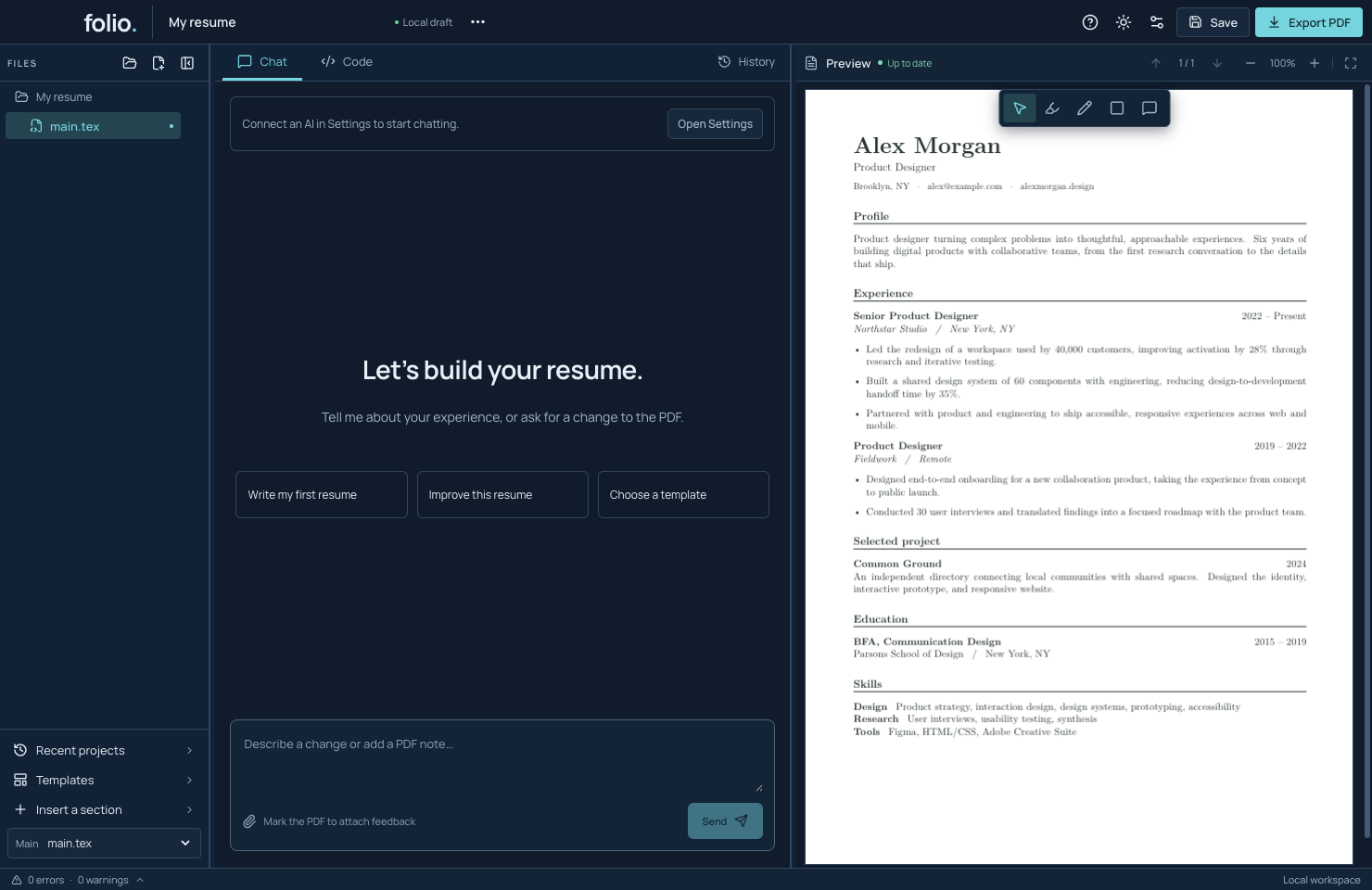
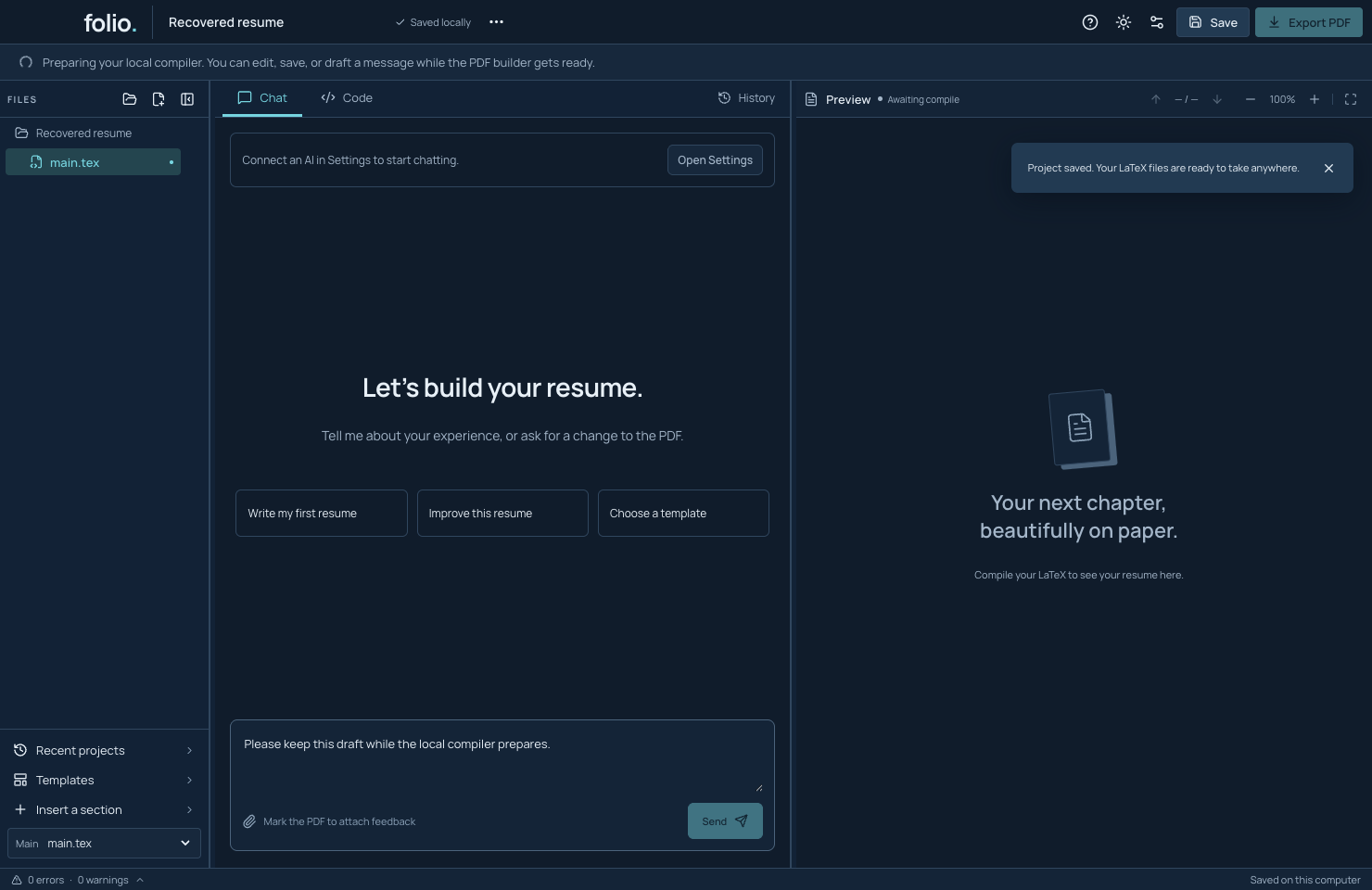
Recovered synthetic resume and a retained message draft while Folio prepares its local compiler.

Development source · synthetic resume · no AI account

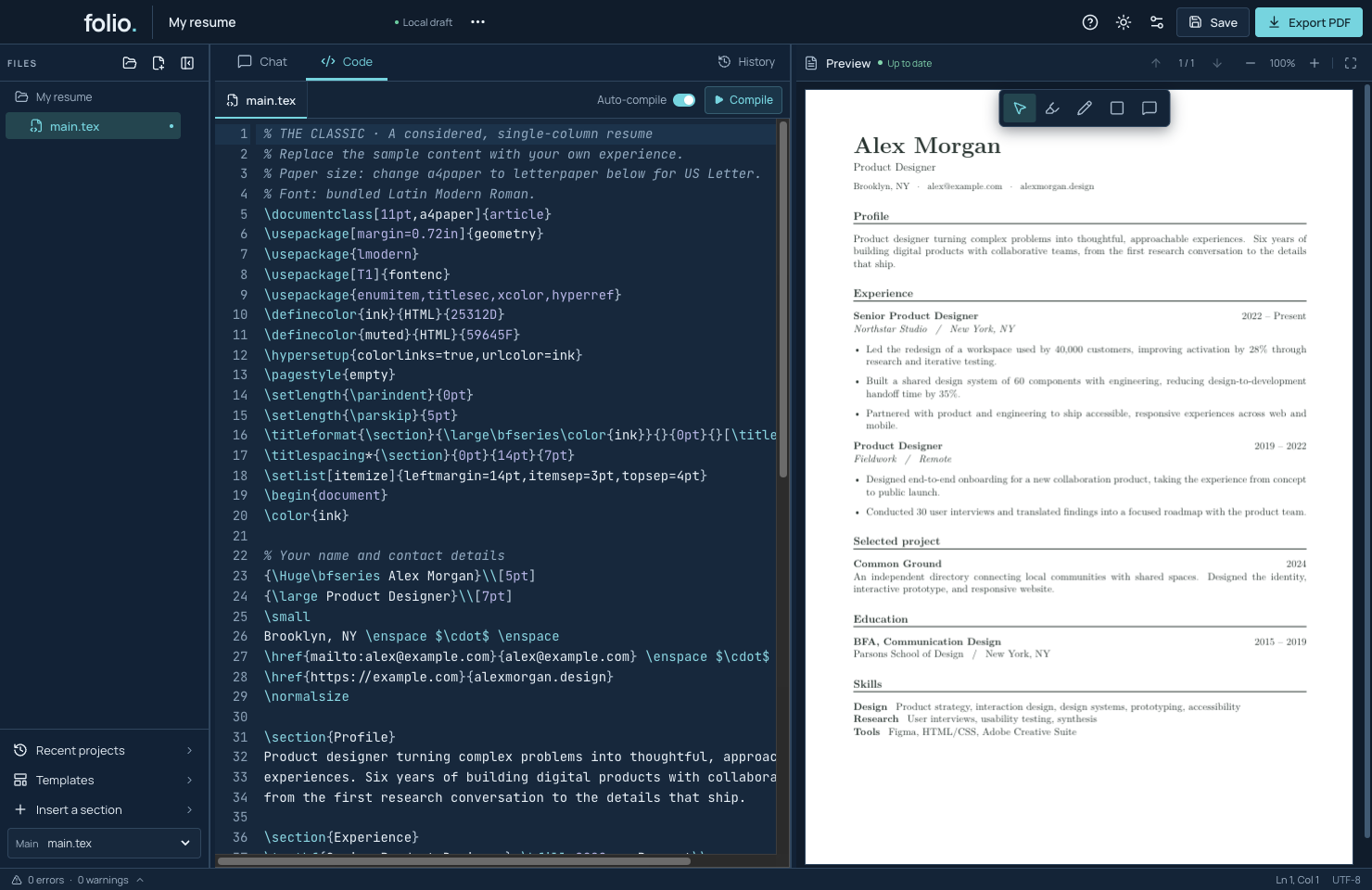
Start before the PDF builder is ready

Current source opens recovered work while the compiler prepares. The preview-4 installer predates this improvement.

  1. Open Folio and wait for your saved resume to appear.
  2. Edit in Code, draft a message in Chat, or save while the preparation bar is visible.
  3. Wait for compiler checks before sending, building or exporting; your draft stays in the composer.
Read the tutorial →Full screenshot ↗
Templates and paper size in the real Folio app

Real app · synthetic project

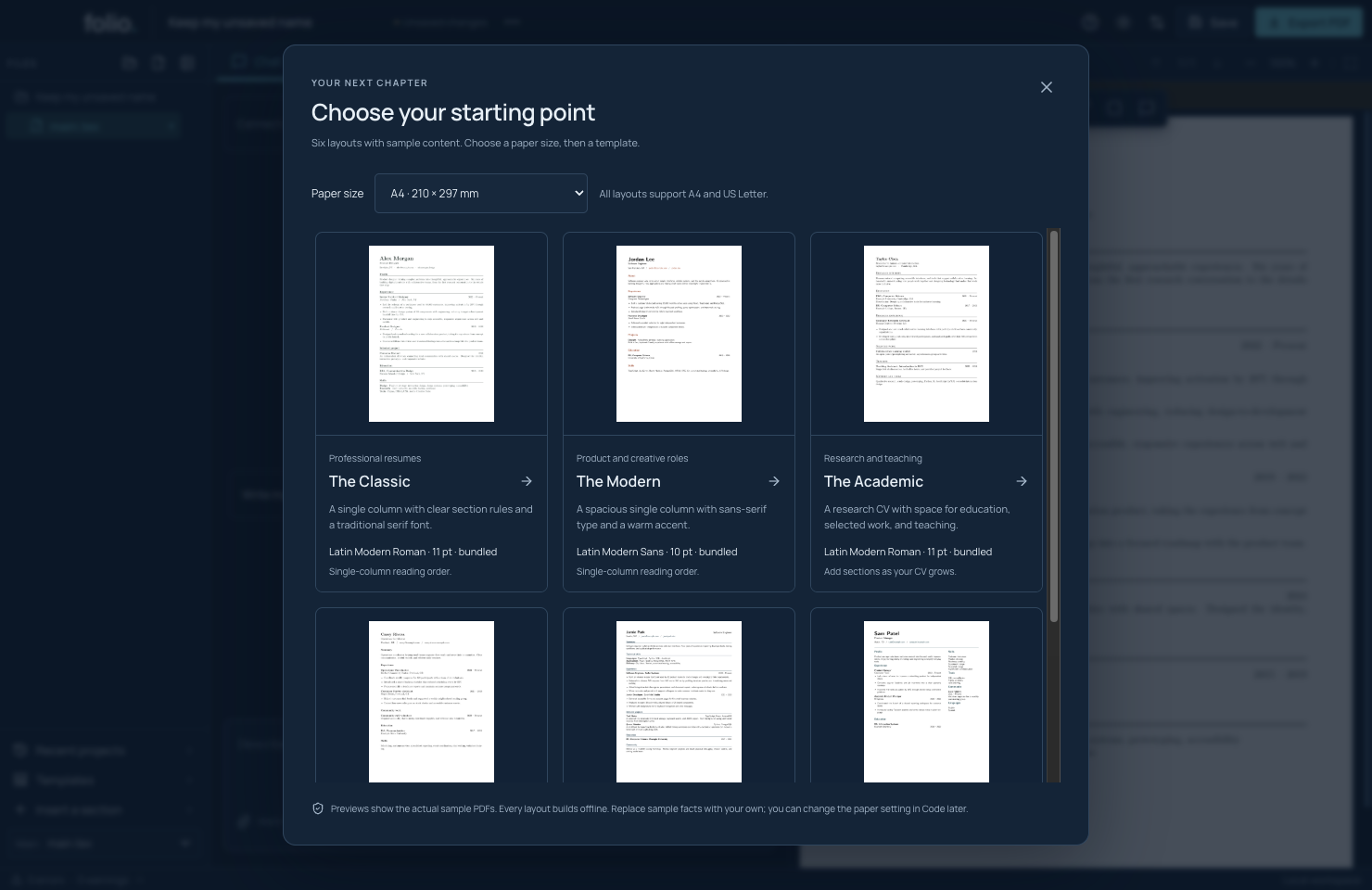
Templates and paper size

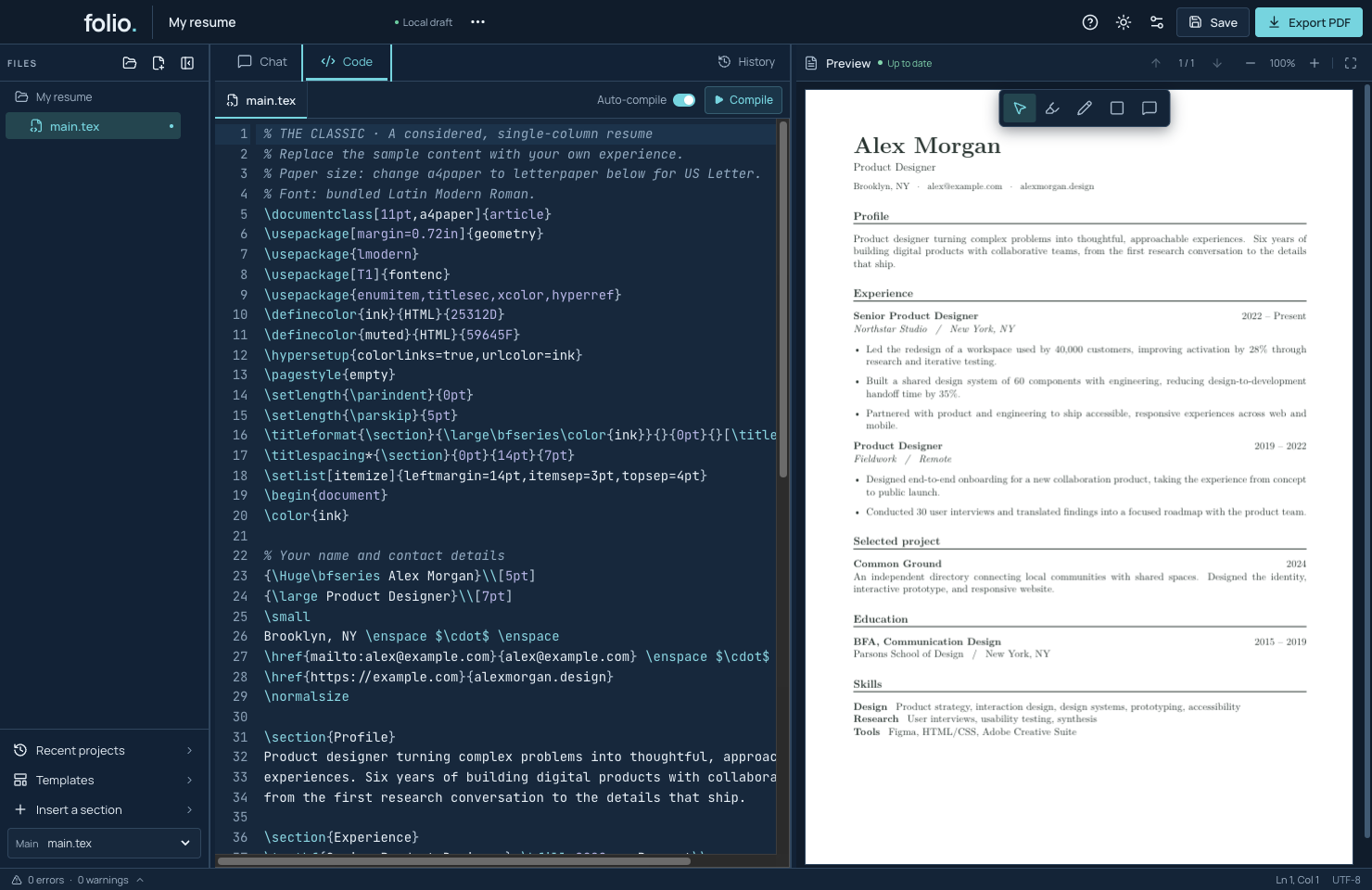
Six original layouts with real PDF thumbnails and bundled fonts.

  1. Open Templates in the sidebar.
  2. Choose a paper size and inspect the thumbnail.
  3. Select a style and replace the sample facts.
Read the tutorial →Full screenshot ↗
Chat and agent progress in the real Folio app

Real app · scripted local AI fixture

Chat and agent progress

The local test fixture renames a heading while the real compiler and history run.

  1. Send a clear request.
  2. Watch reading, editing, building, and PDF review progress.
  3. Inspect the result; use Stop or Retry when needed.
Read the tutorial →Full screenshot ↗
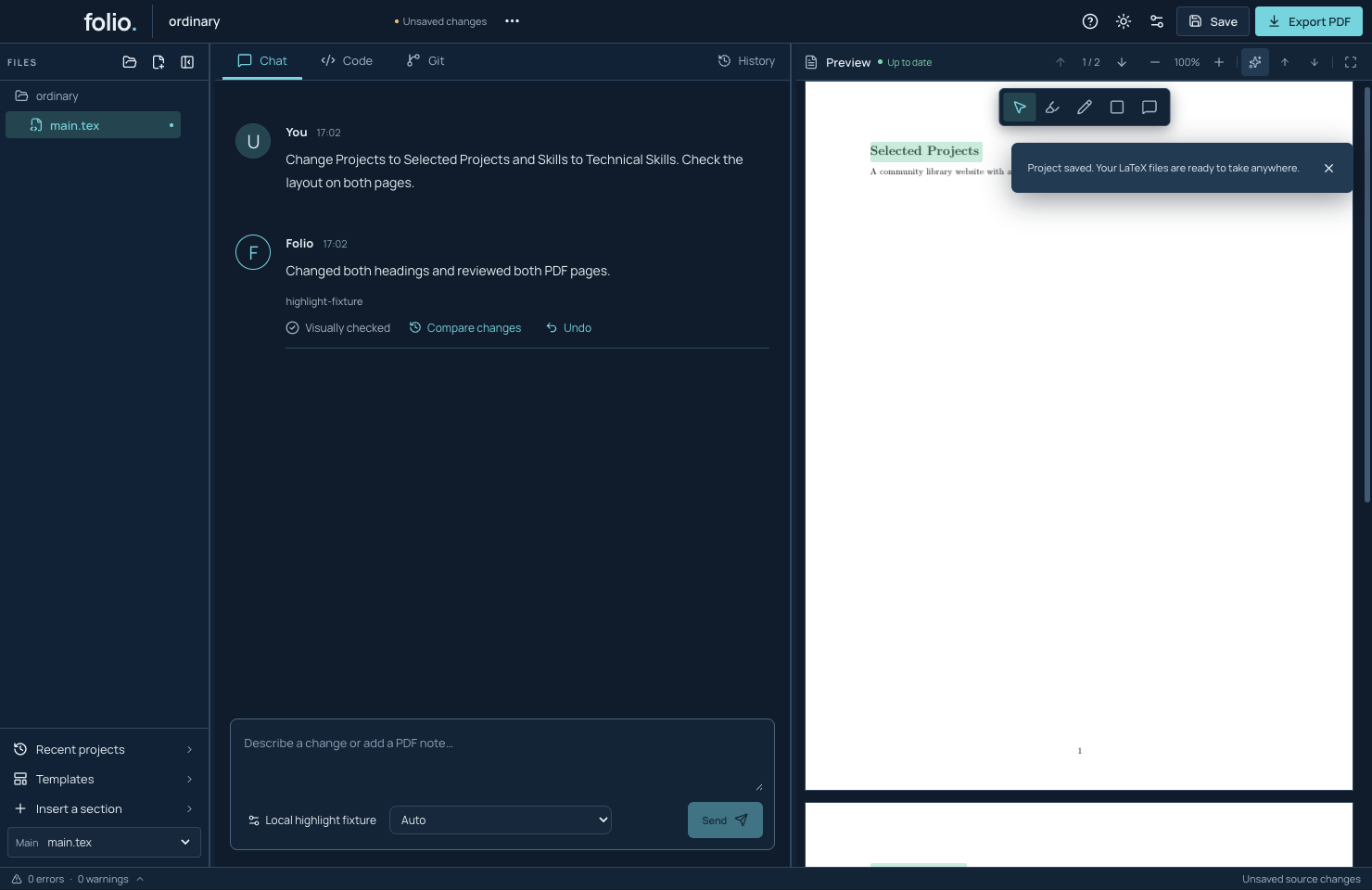
PDF change highlights after an AI edit in Folio

Current development source · scripted local AI fixture

PDF change highlights after AI edits

Changed regions flash on the new PDF after an AI edit and can be replayed. Available in development source; the preview-4 installer predates this feature.

  1. Send an edit request and wait for the finished PDF.
  2. Watch the changed regions flash, then fade.
  3. Use Show changes, Previous change, and Next change to revisit them.
Read the tutorial →Full screenshot ↗
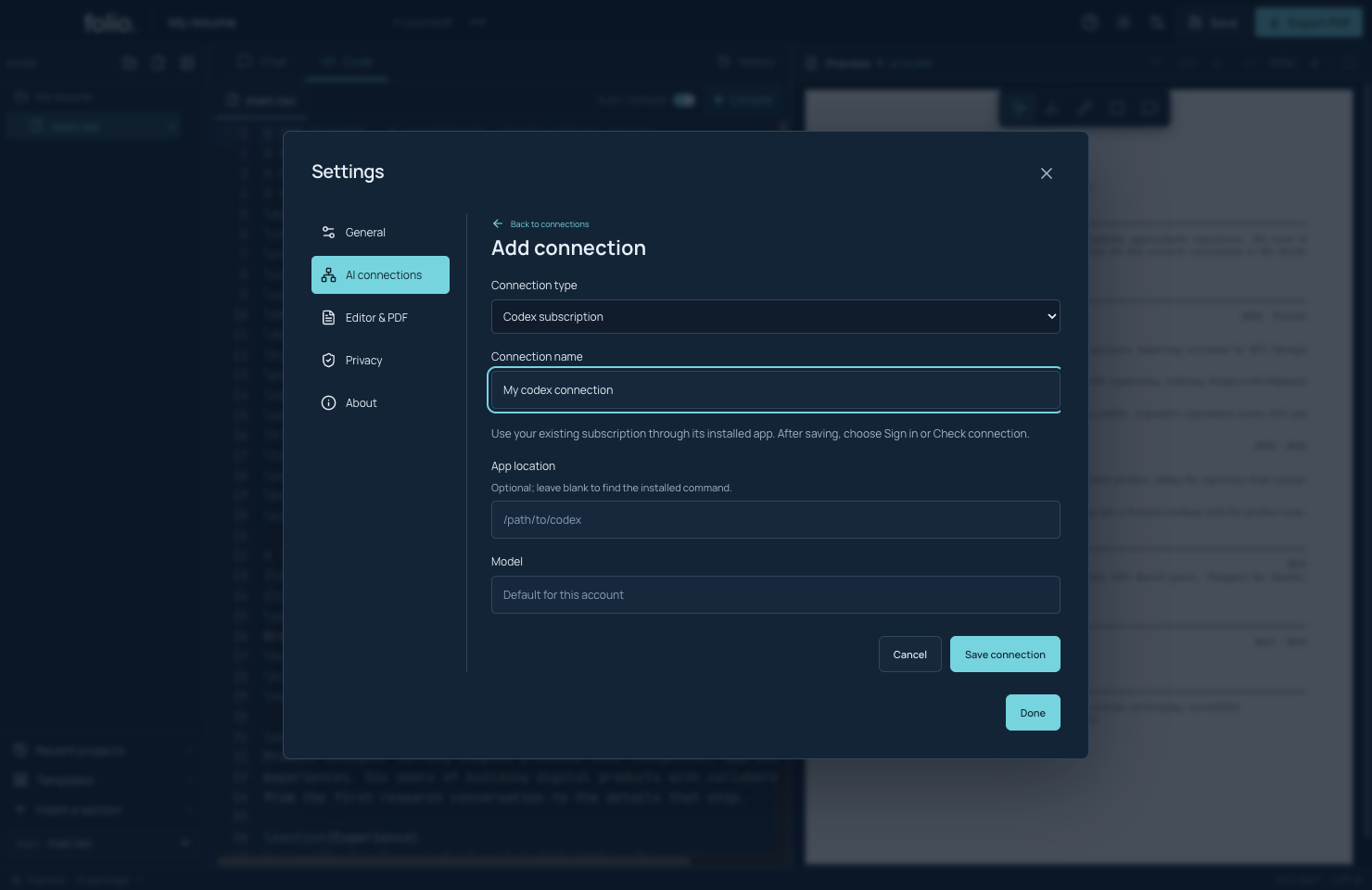
Codex subscription in the real Folio app

Real form · no connected account

Codex subscription

Setup is shown with empty credentials. This does not prove live account compatibility.

  1. Open Settings → AI connections → Add connection.
  2. Fill your own connection details and save.
  3. Select the connection, check it, and test image support.
Read the tutorial →Full screenshot ↗
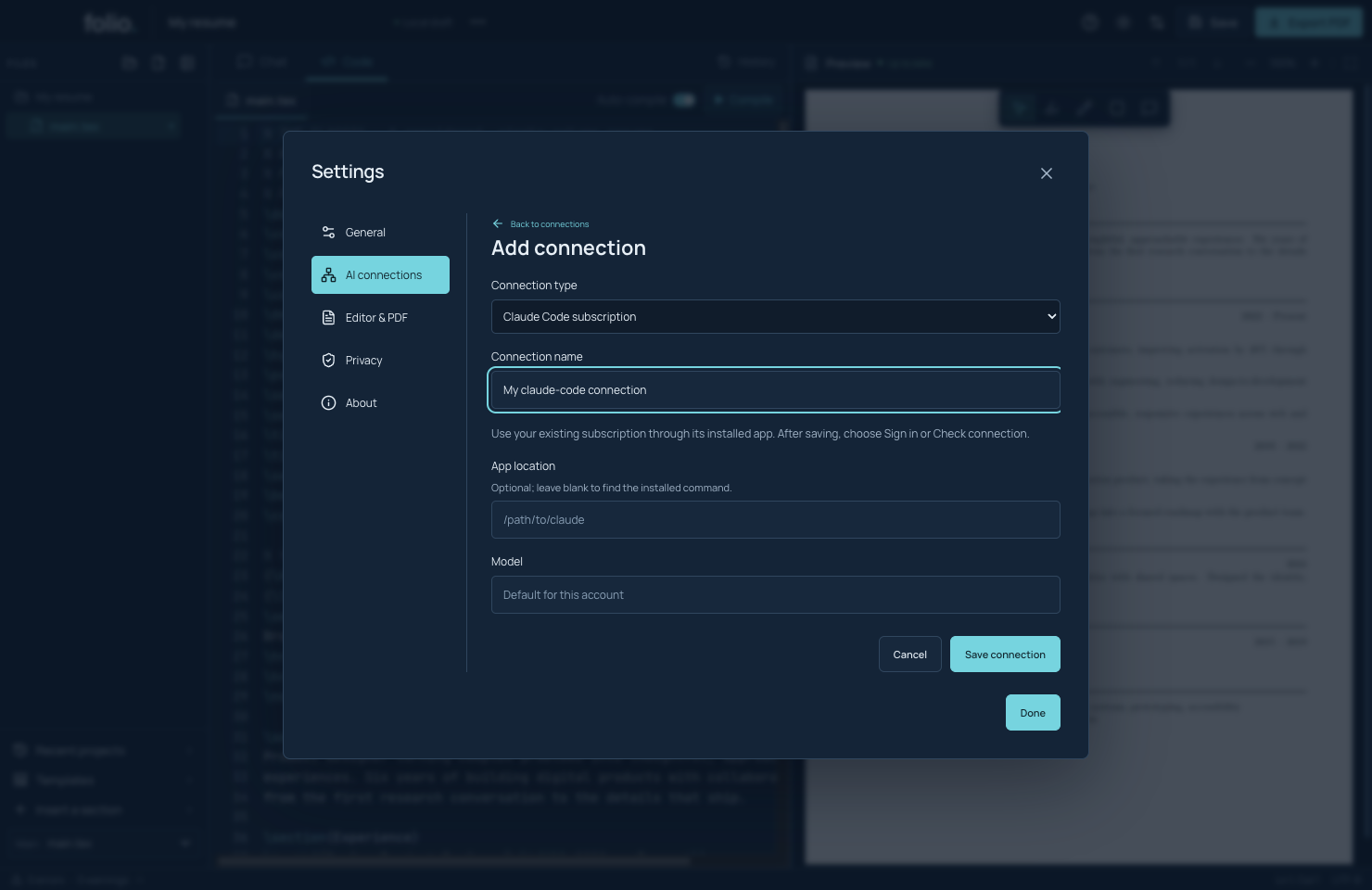
Claude Code subscription in the real Folio app

Real form · no connected account

Claude Code subscription

Setup is shown with empty credentials. This does not prove live account compatibility.

  1. Open Settings → AI connections → Add connection.
  2. Fill your own connection details and save.
  3. Select the connection, check it, and test image support.
Read the tutorial →Full screenshot ↗
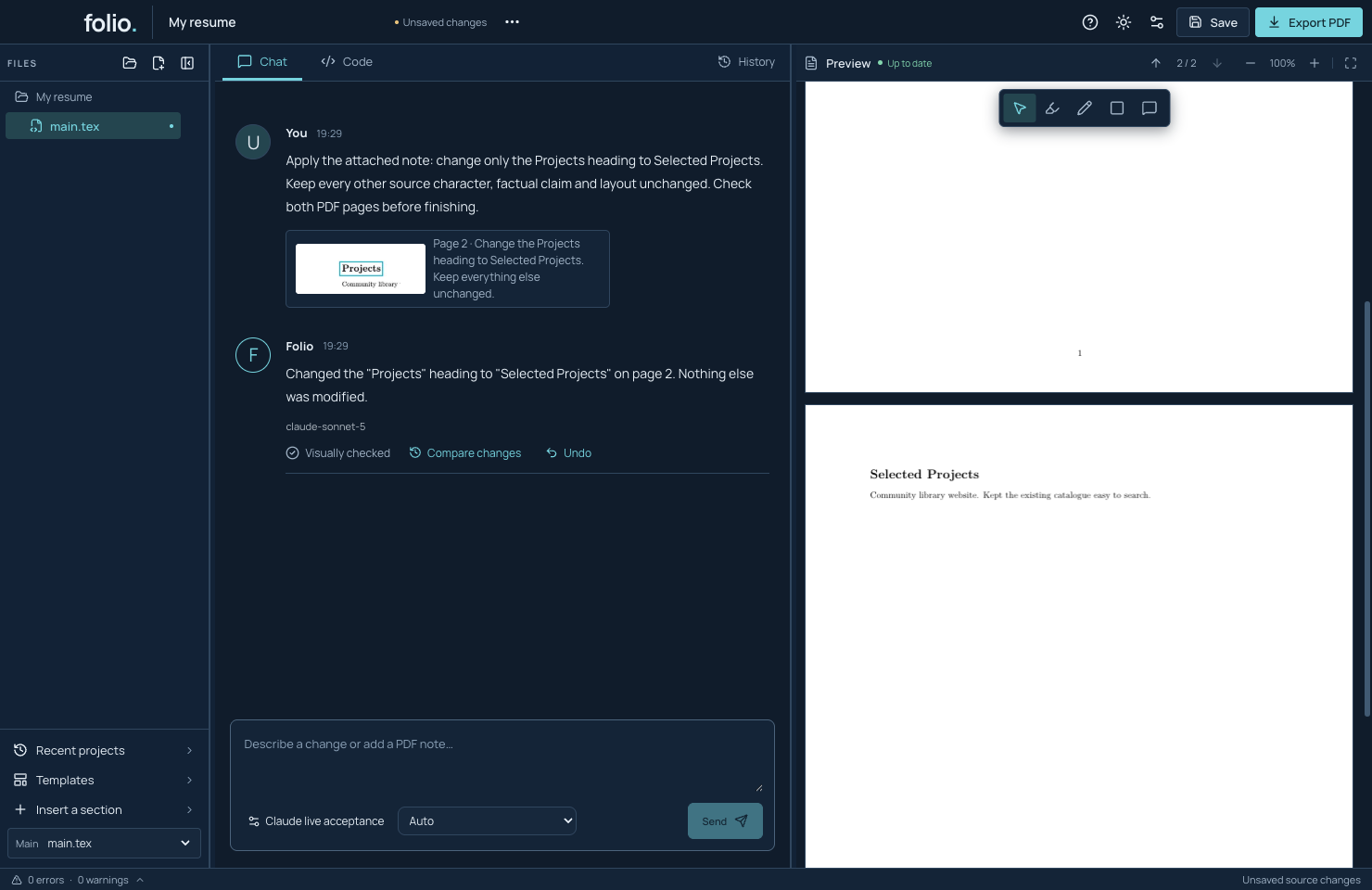
Folio showing the real Claude reply, Visually checked status and changed Selected Projects heading on page two

Real Claude subscription · synthetic document · source build

Change a PDF with a real Claude subscription

One live source-build workflow follows a note on page two, changes only the heading, reviews the PDF, and verifies save, export and reopen. It uses a made-up document and no API key.

  1. Select Claude Code in Settings and test image support.
  2. Box the heading, write a note, attach it to Chat and send.
  3. Review the changed PDF, save the project, and export a clean PDF.
Read the tutorial →Full screenshot ↗
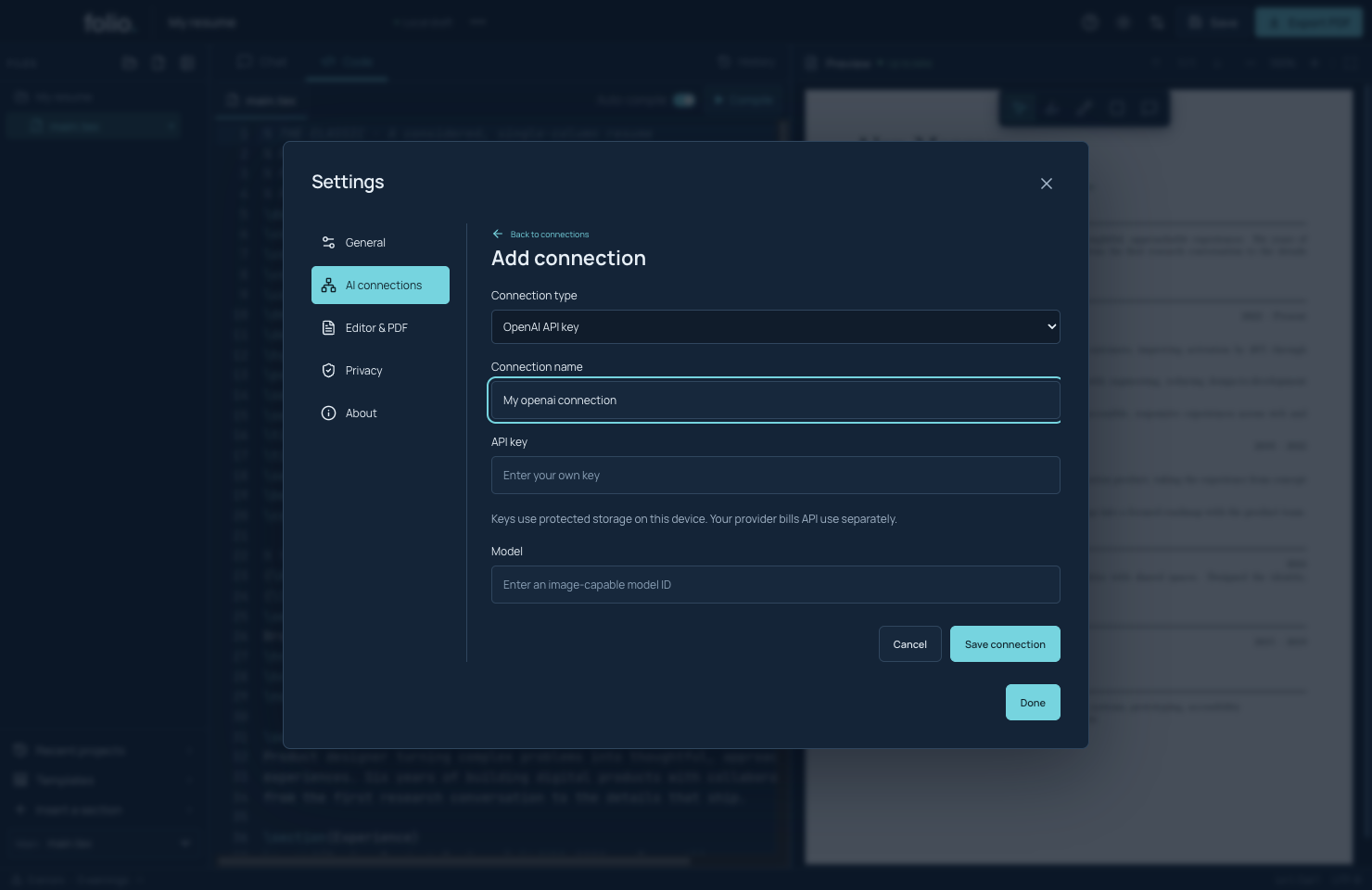
OpenAI API key in the real Folio app

Real form · no connected account

OpenAI API key

Setup is shown with empty credentials. This does not prove live account compatibility.

  1. Open Settings → AI connections → Add connection.
  2. Fill your own connection details and save.
  3. Select the connection, check it, and test image support.
Read the tutorial →Full screenshot ↗
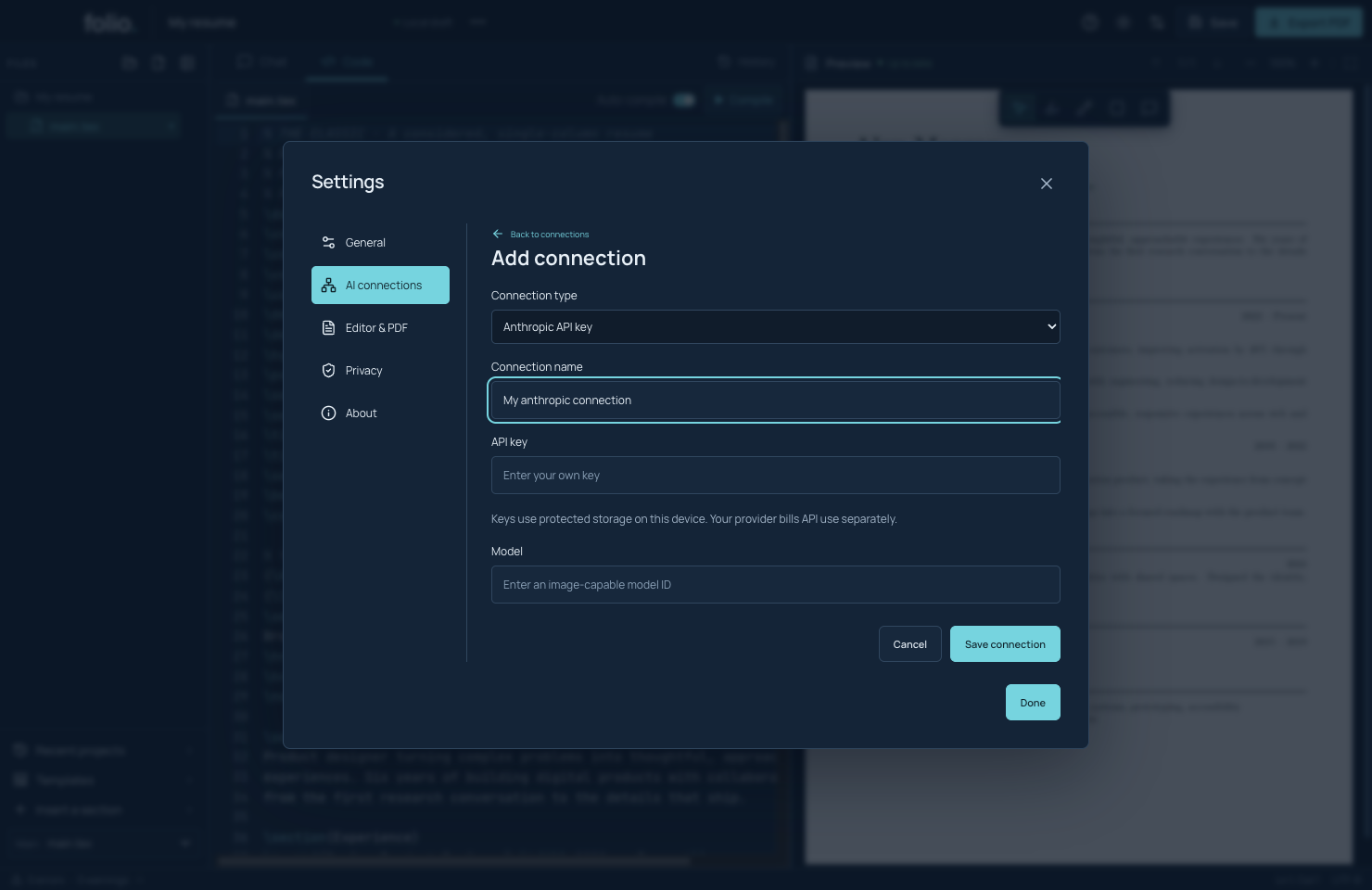
Anthropic API key in the real Folio app

Real form · no connected account

Anthropic API key

Setup is shown with empty credentials. This does not prove live account compatibility.

  1. Open Settings → AI connections → Add connection.
  2. Fill your own connection details and save.
  3. Select the connection, check it, and test image support.
Read the tutorial →Full screenshot ↗
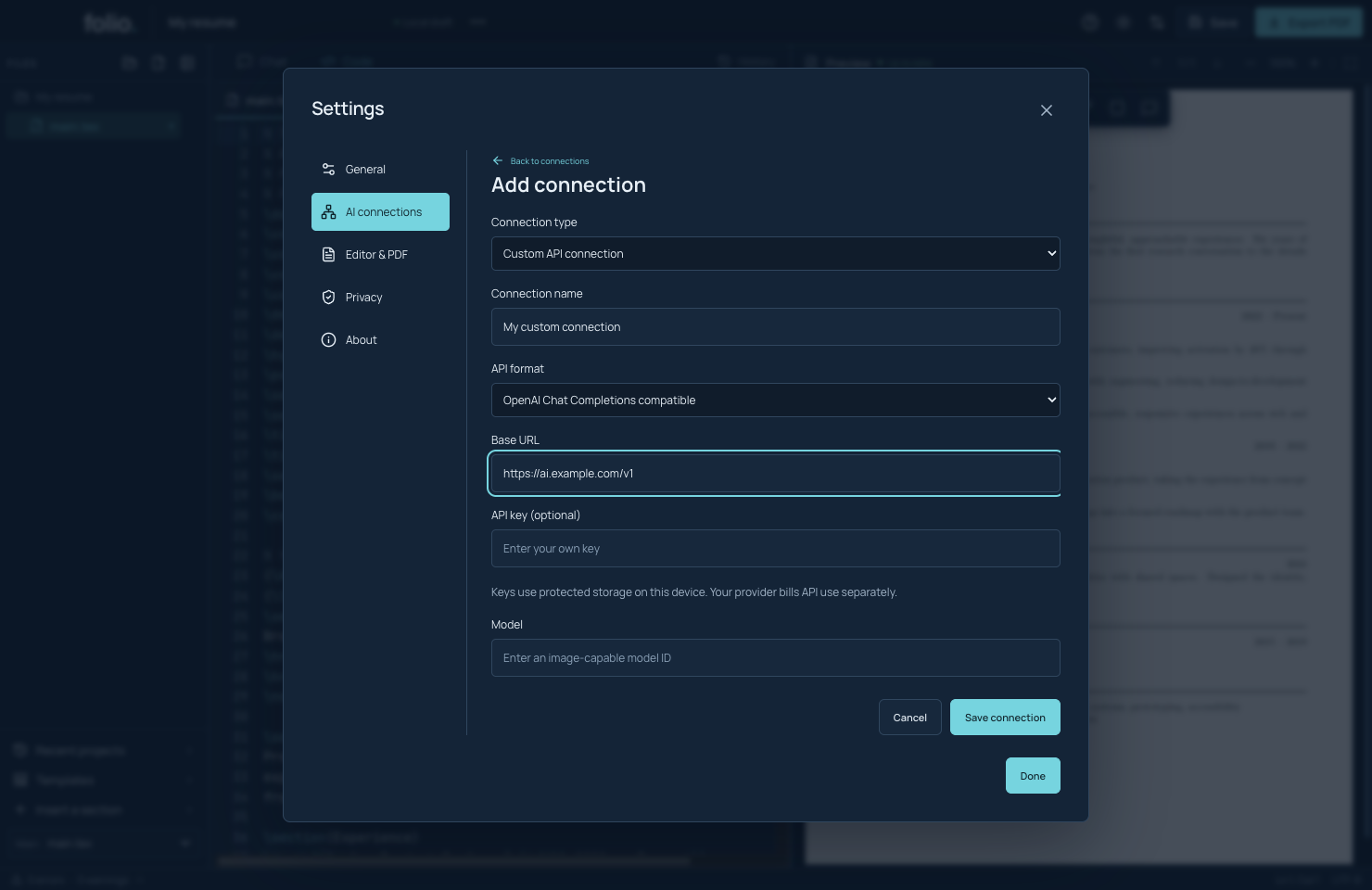
Custom AI endpoint in the real Folio app

Real form · no connected account

Custom AI endpoint

Setup is shown with empty credentials. This does not prove live account compatibility.

  1. Open Settings → AI connections → Add connection.
  2. Fill your own connection details and save.
  3. Select the connection, check it, and test image support.
Read the tutorial →Full screenshot ↗
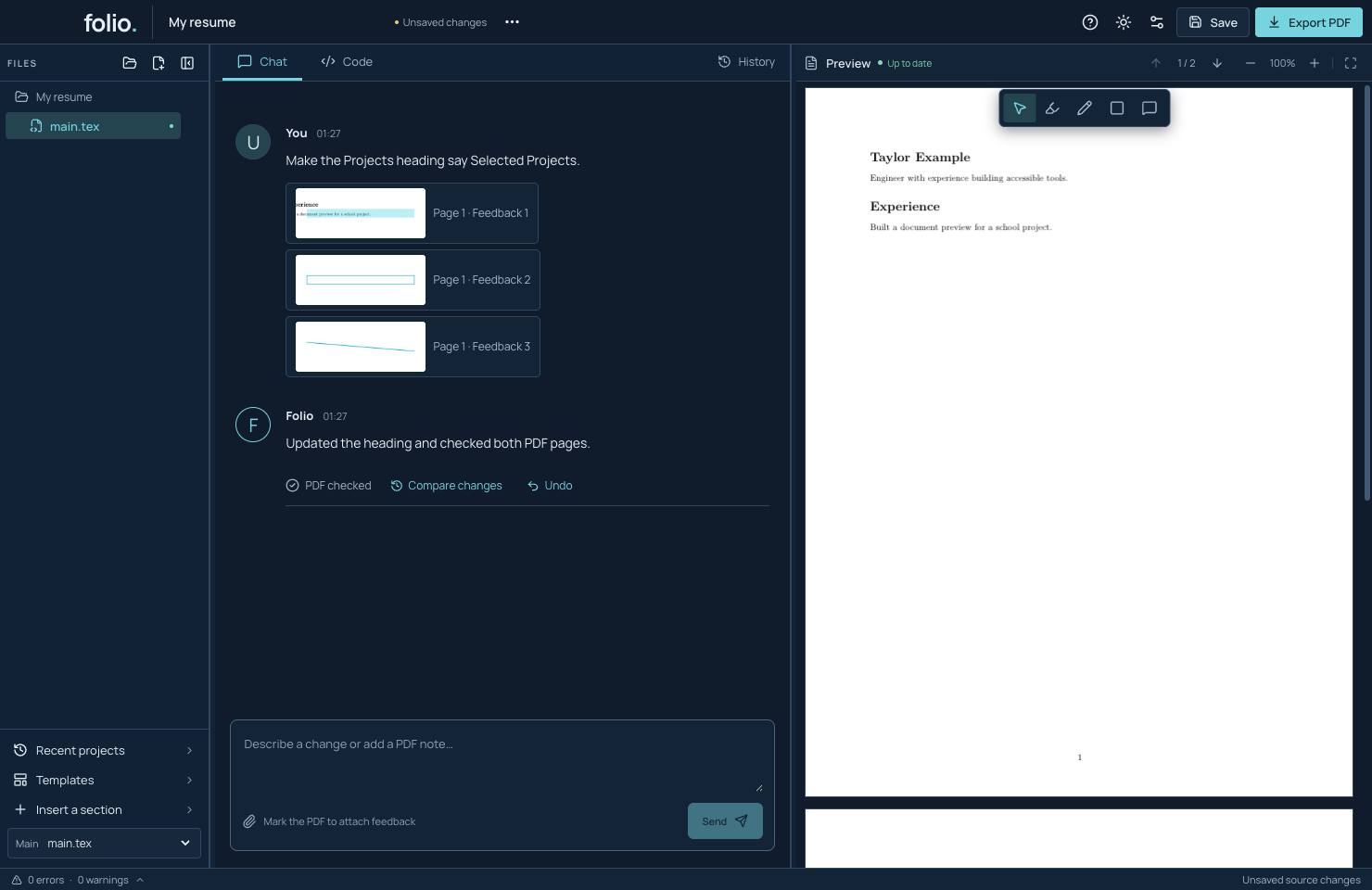
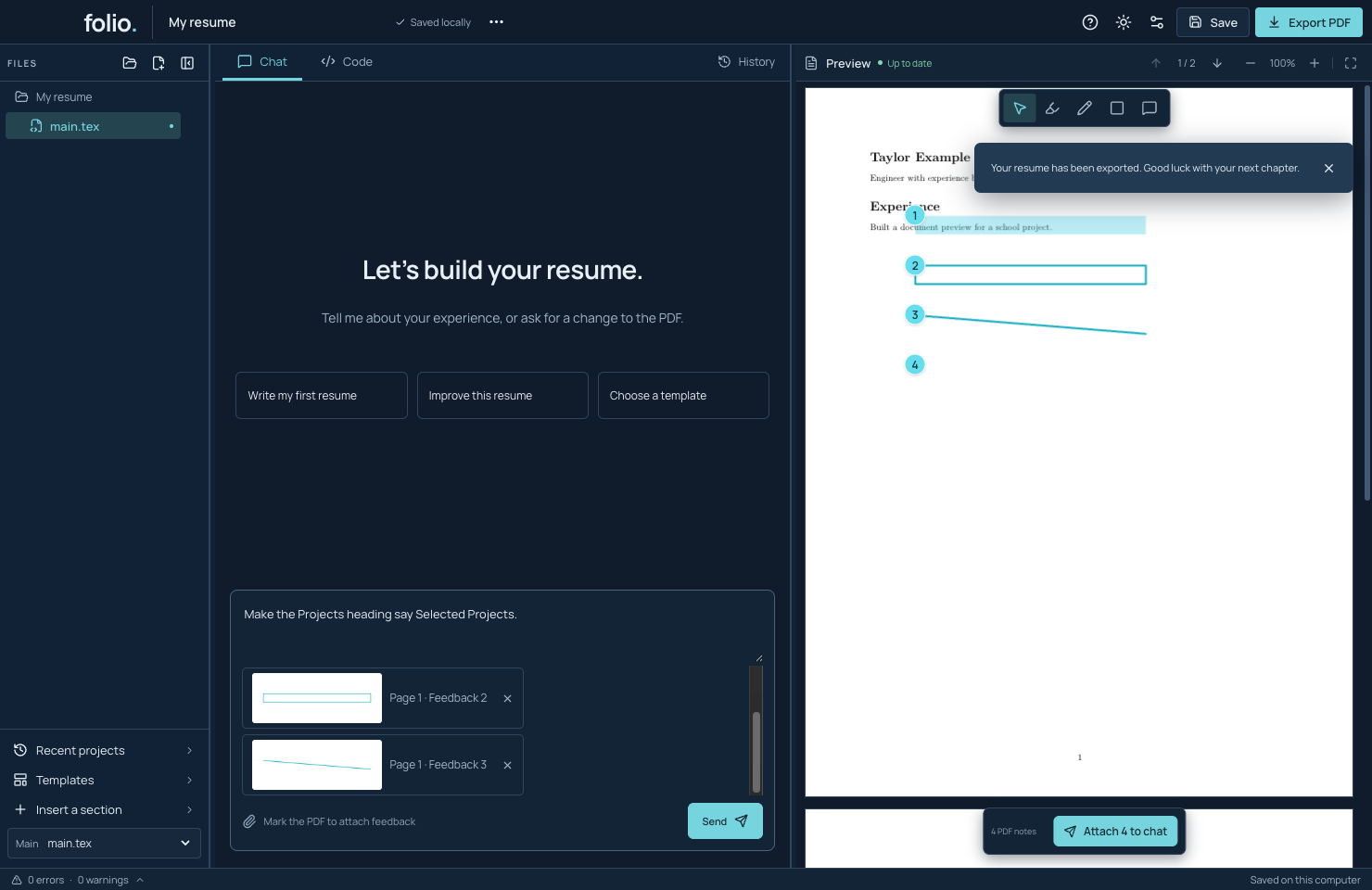
Visual PDF feedback in the real Folio app

Real app · scripted local AI fixture

Visual PDF feedback

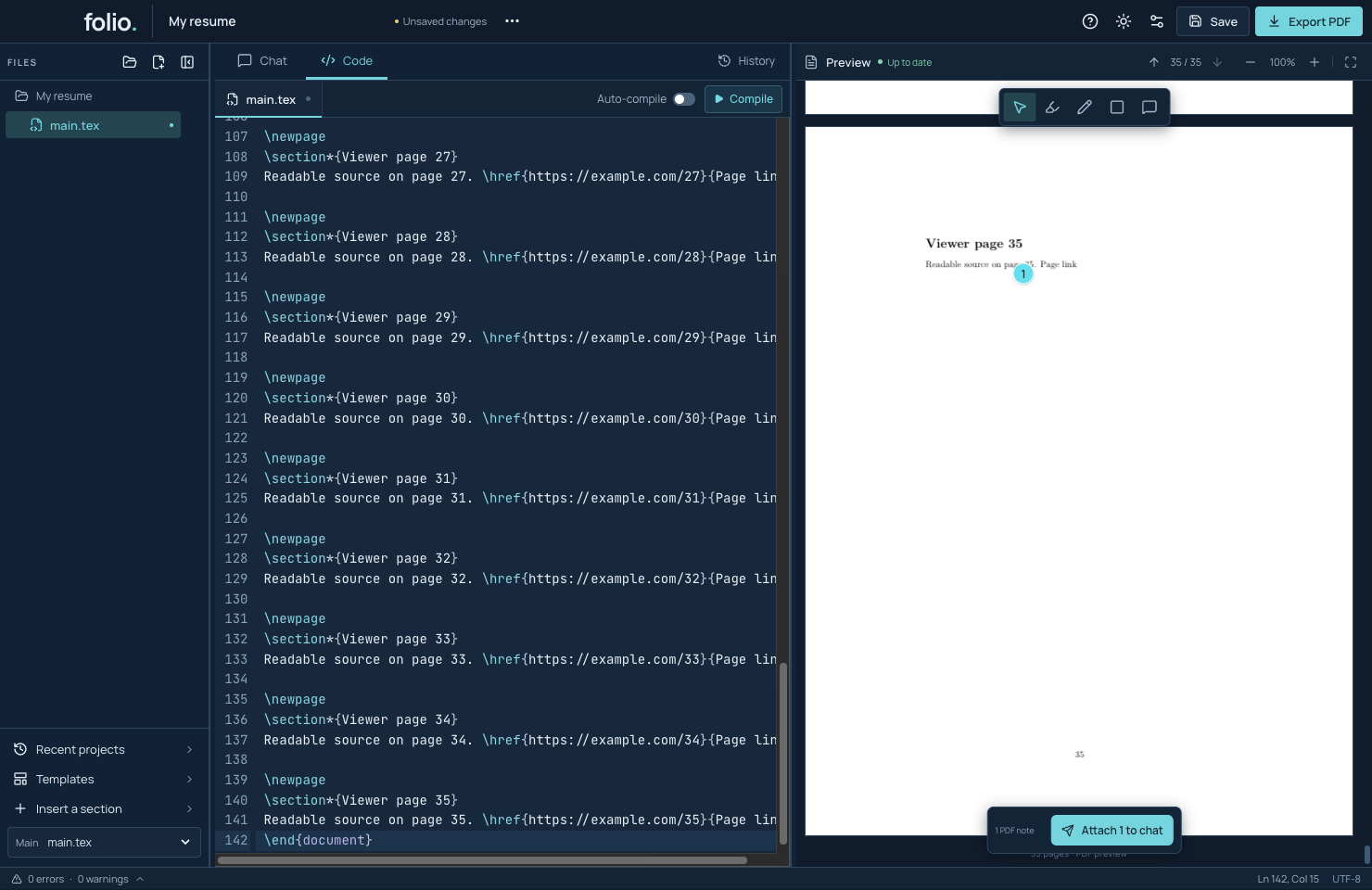
Highlight, box, draw, or leave a note. Attach the marked area to Chat.

  1. Pick a tool and mark the page.
  2. Write an instruction and save the note.
  3. Select notes, attach them to Chat, and send.
Read the tutorial →Full screenshot ↗
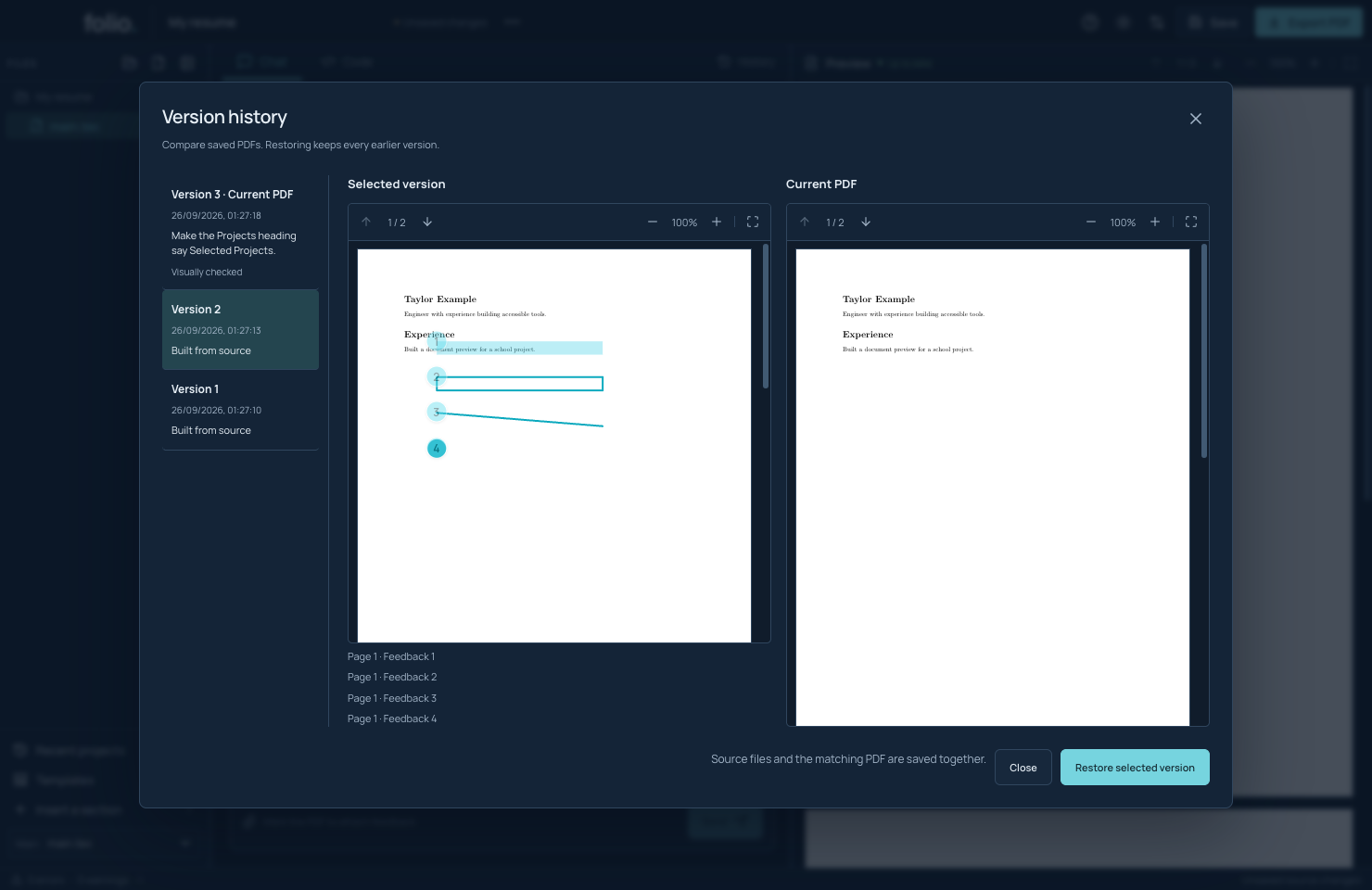
Compare, undo and restore in the real Folio app

Real app · scripted local AI fixture

Compare, undo and restore

Inspect an earlier PDF beside the current one.

  1. Open History or Compare changes.
  2. Select an earlier version and read both PDFs.
  3. Restore the selected version or use Undo for a recent edit.
Read the tutorial →Full screenshot ↗
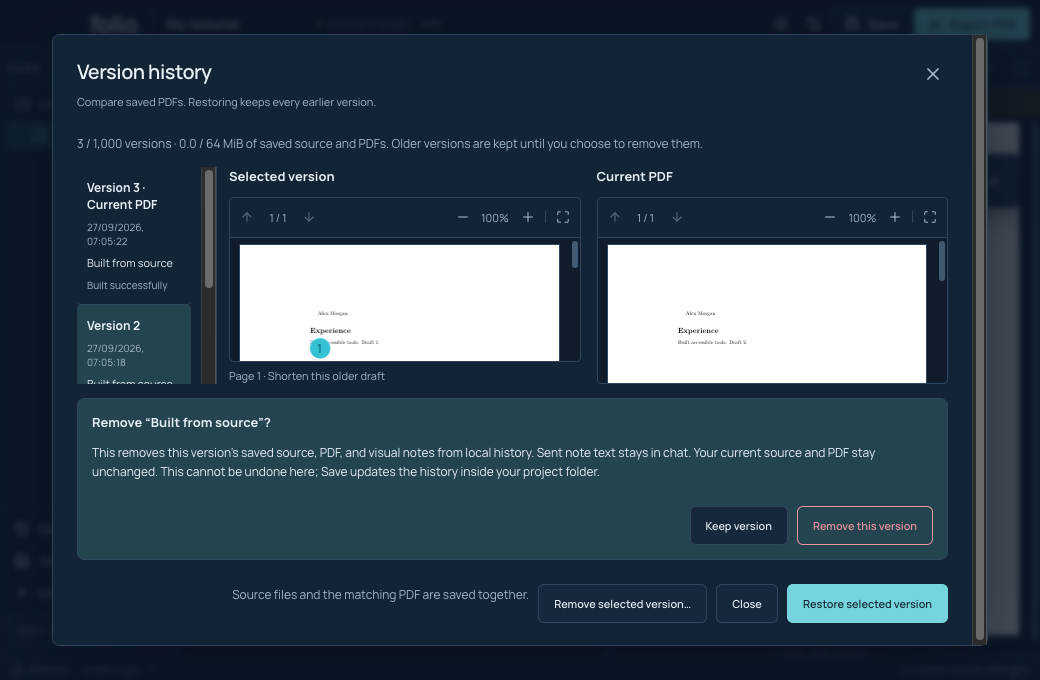
Real Folio History dialog comparing two synthetic PDFs and asking before removing an older version.

Development source · synthetic resume · no AI account

Make room in History

Review and remove an older saved PDF while keeping the current work and chat draft. Available in development source; the preview-4 installer predates this feature.

  1. Open History and check how much saved history the project uses.
  2. Choose an older version, select Remove selected version, and read the confirmation.
  3. Remove that version, then Save to update the history inside the project folder.
Read the tutorial →Full screenshot ↗
Code and build errors in the real Folio app

Real app · synthetic project

Code and build errors

The Code tab supports search, per-file undo, snippets and compilation.

  1. Edit text while preserving TeX commands.
  2. Compile and inspect diagnostics if the build fails.
  3. Fix the source, rebuild, and check Up to date.
Read the tutorial →Full screenshot ↗
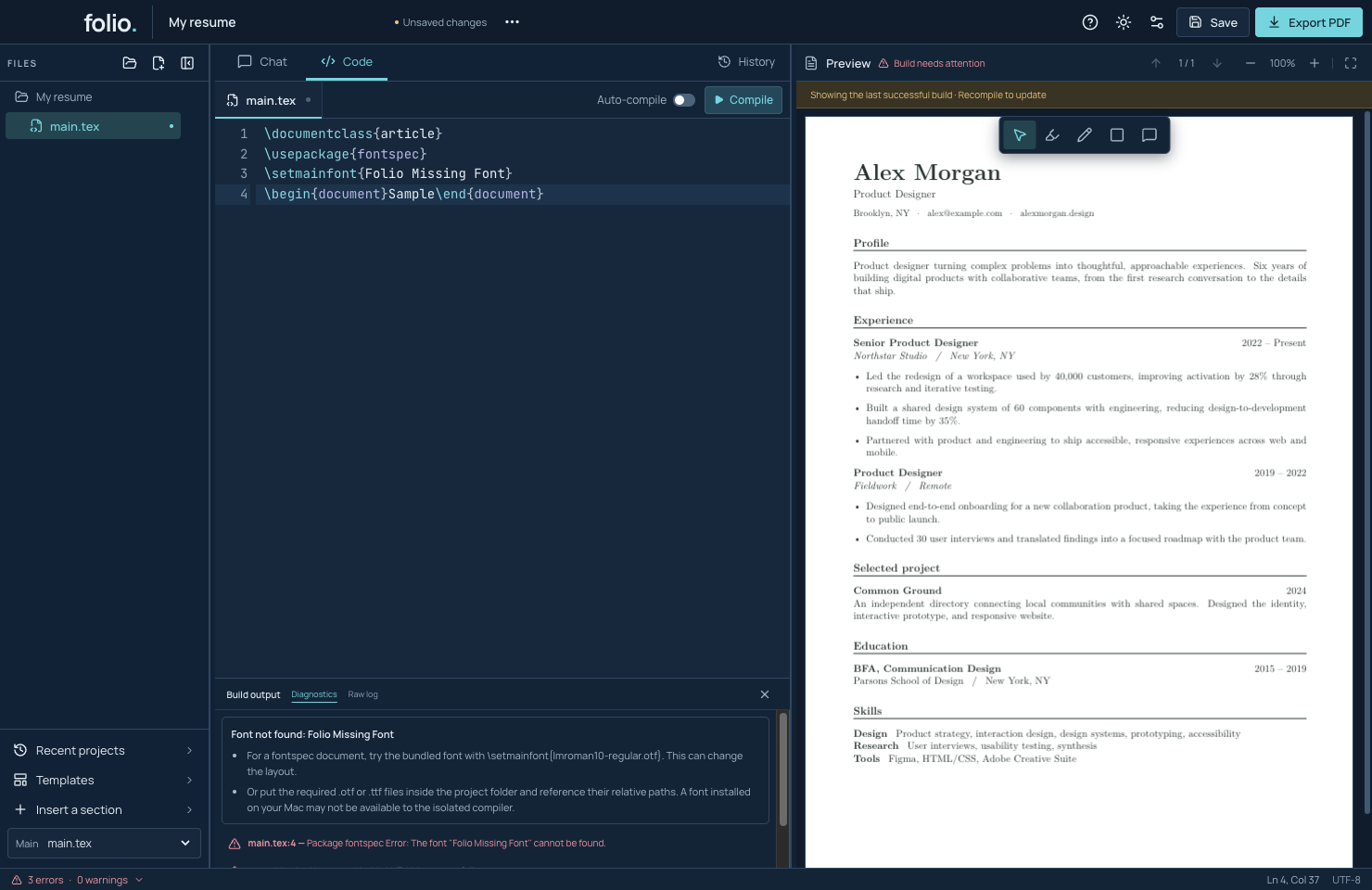
Missing-font guidance beside the last successful PDF in Folio

Real compiler · synthetic missing font

Understand a build error

Real compiler errors get specific next steps while the last successful PDF stays visible.

  1. Read the explanation above the original errors in Build output.
  2. Select a source-linked error or open Raw log for detail.
  3. Apply the supported fix, compile again, and wait for Up to date.
Read the tutorial →Full screenshot ↗
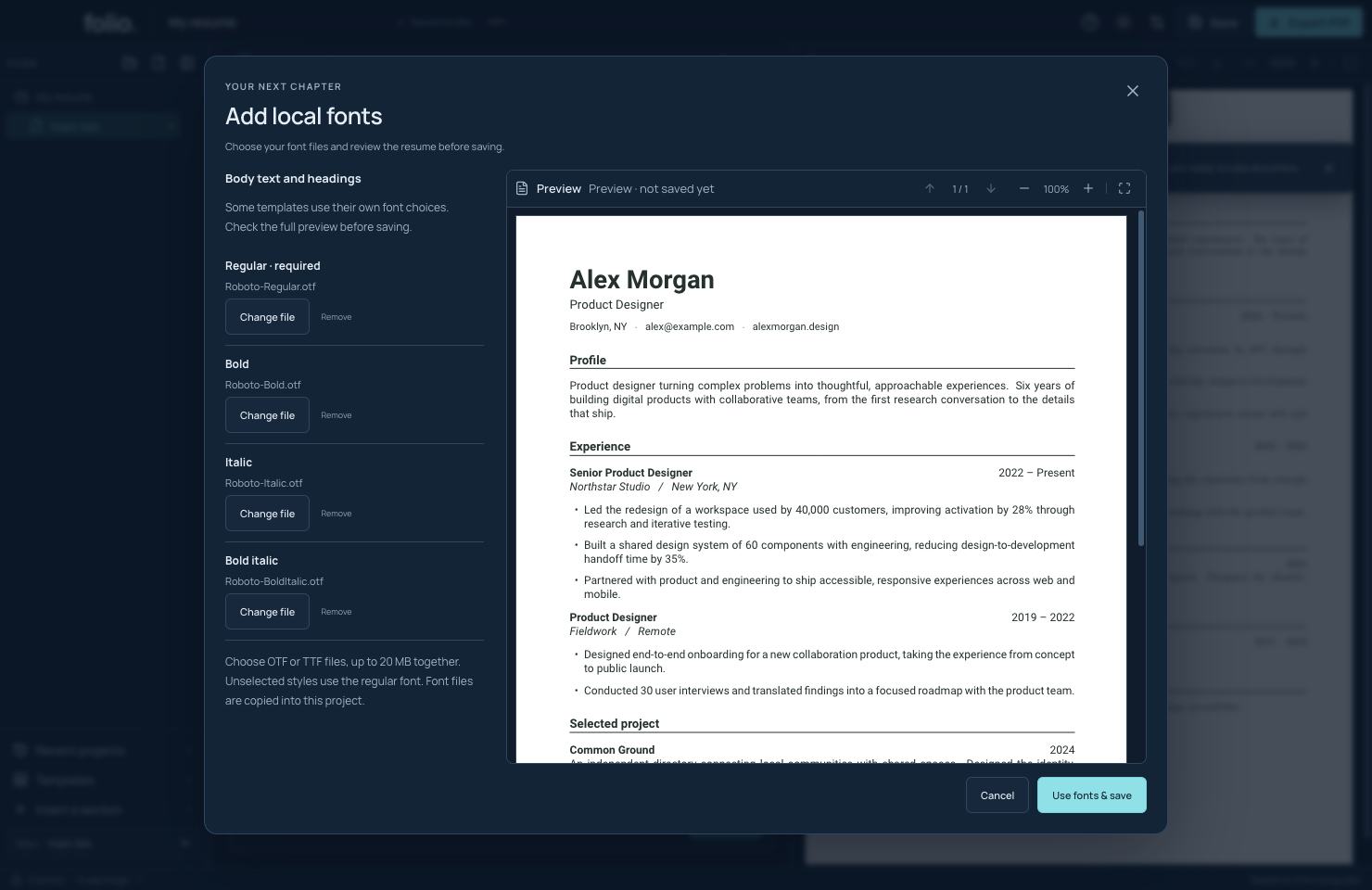
Local OTF font selections beside a real Folio resume preview before saving

Real app · synthetic project

Use your own fonts

Choose font files, review the real PDF, then save them with your resume.

  1. Open More project actions → Add local fonts….
  2. Choose regular and optional style files; build the preview.
  3. Review every page, then choose Use fonts & save or Cancel.
Read the tutorial →Full screenshot ↗
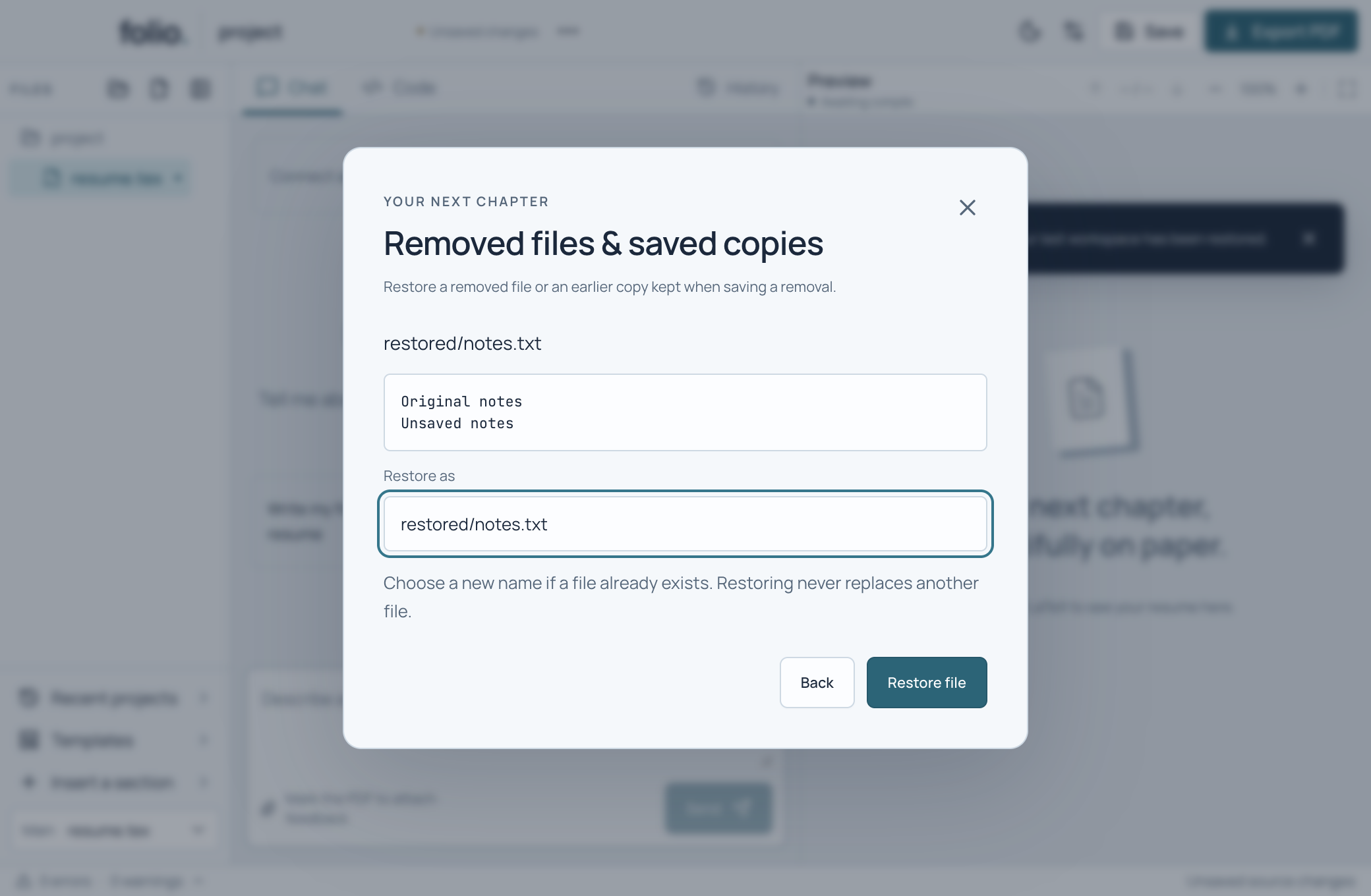
Files and retained copies in the real Folio app

Real app · synthetic project

Files and retained copies

Create, rename, remove and restore source files.

  1. Add a source file and reference it from the main file.
  2. Use its menu to rename or remove it, then save.
  3. Open Removed files & saved copies to restore text.
Read the tutorial →Full screenshot ↗
Open, import and export source in the real Folio app

Real app · synthetic project

Open, import and export source

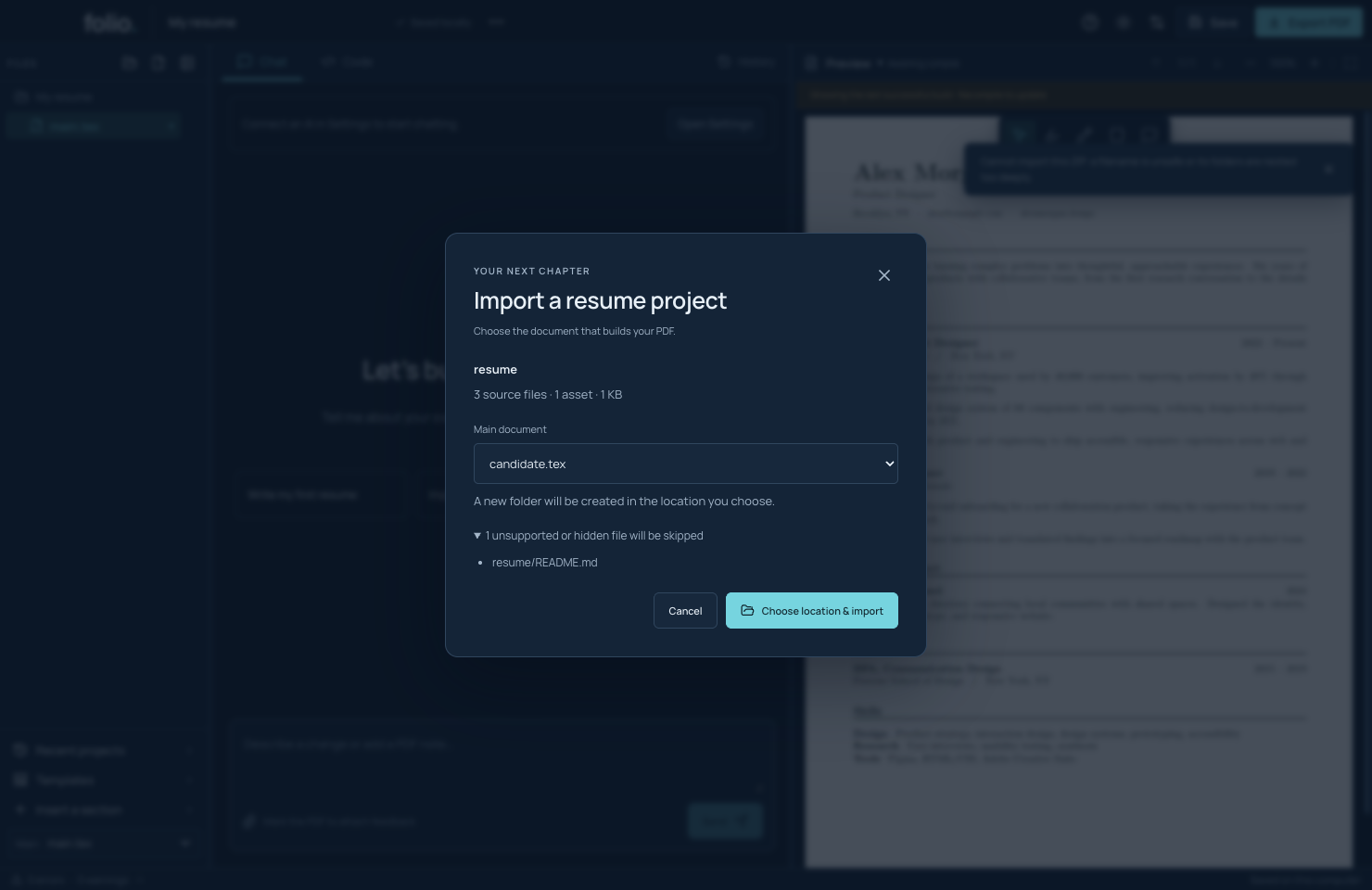
Inspect an archive, select the main document, and keep an independent copy.

  1. Choose Import ZIP project from the project menu.
  2. Review skipped files and choose the main TeX document.
  3. Pick a location; inspect the PDF and export source when needed.
Read the tutorial →Full screenshot ↗
Recover an import in the real Folio app

Real app · controlled interruption fixture

Recover an import

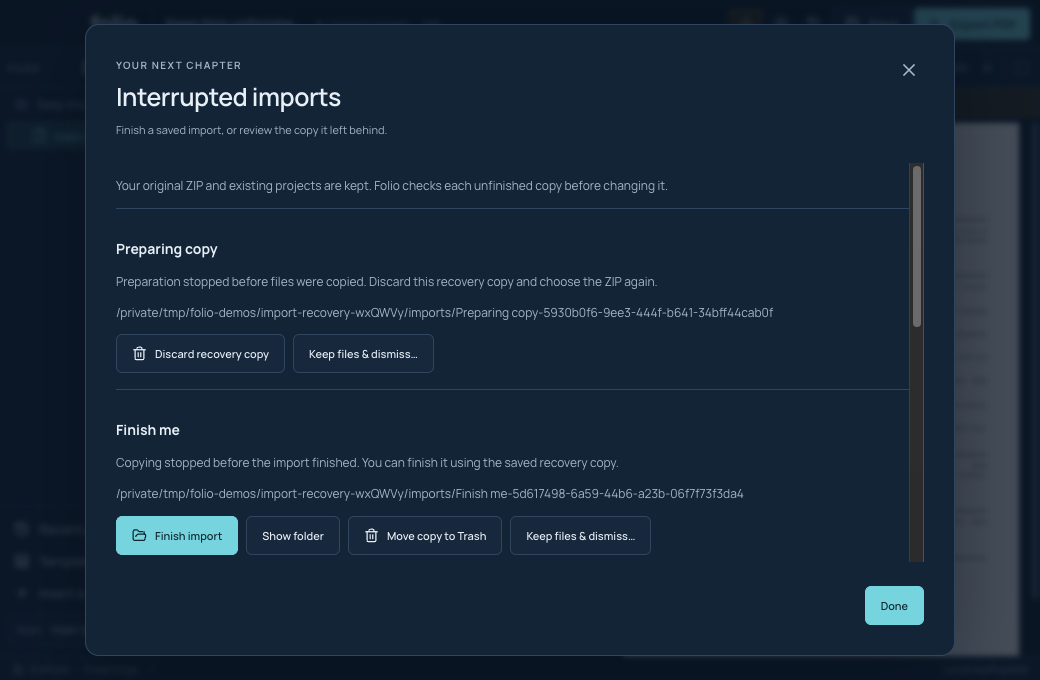
A real helper interruption creates the recovery state in a disposable test folder.

  1. Open the interrupted-import review.
  2. Finish or reopen a verified copy.
  3. Keep outside edits; dismiss recovery only when you intend to.
Read the tutorial →Full screenshot ↗
Save and autosave in the real Folio app

Real app · synthetic project

Save and autosave

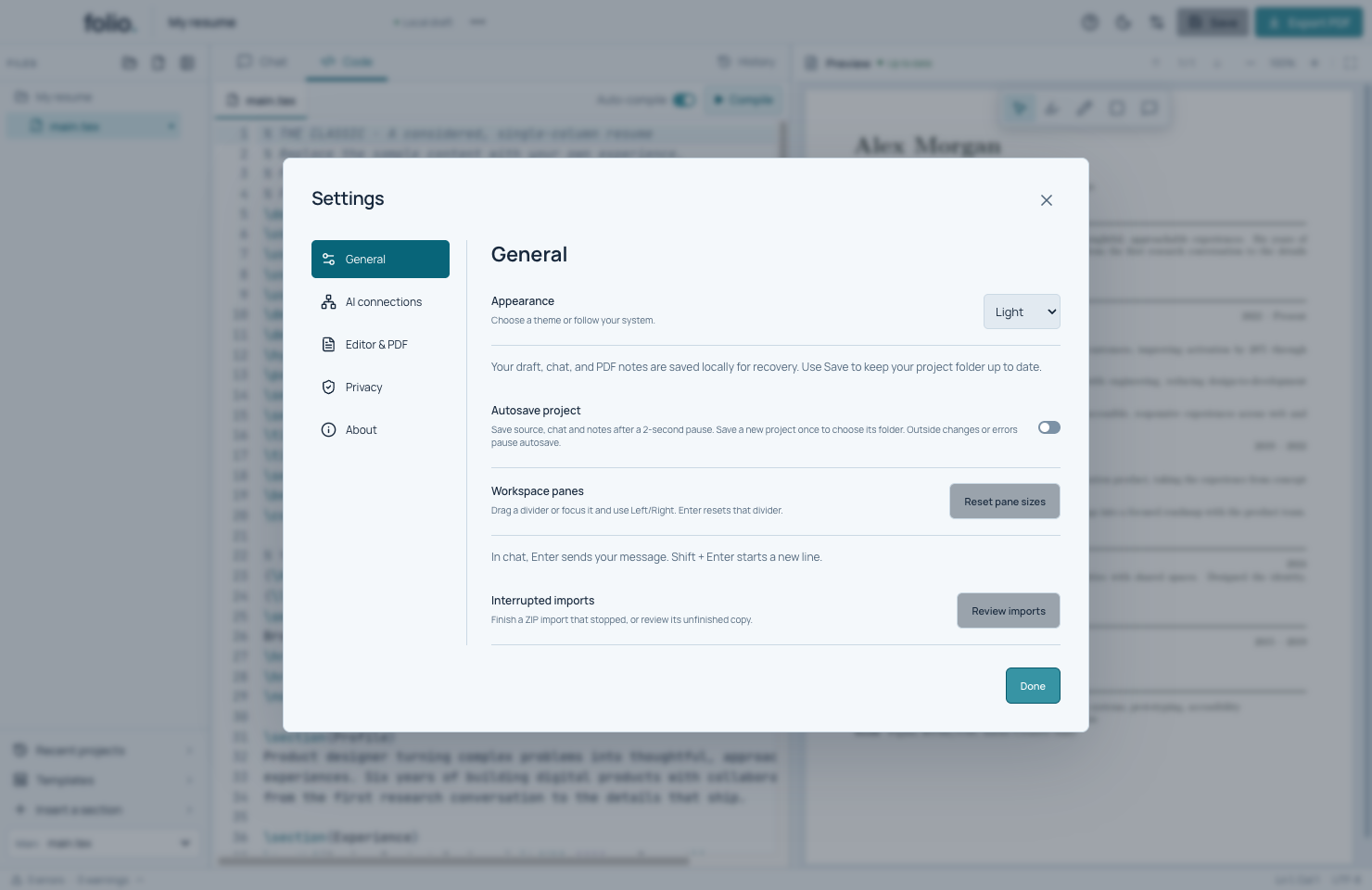
Choose a project folder once, then optionally enable autosave.

  1. Save the project and wait for Saved locally.
  2. Enable Autosave project in General settings.
  3. Review any outside-change or error message before continuing.
Read the tutorial →Full screenshot ↗
Review outside changes in the real Folio app

Real app · synthetic project

Review outside changes

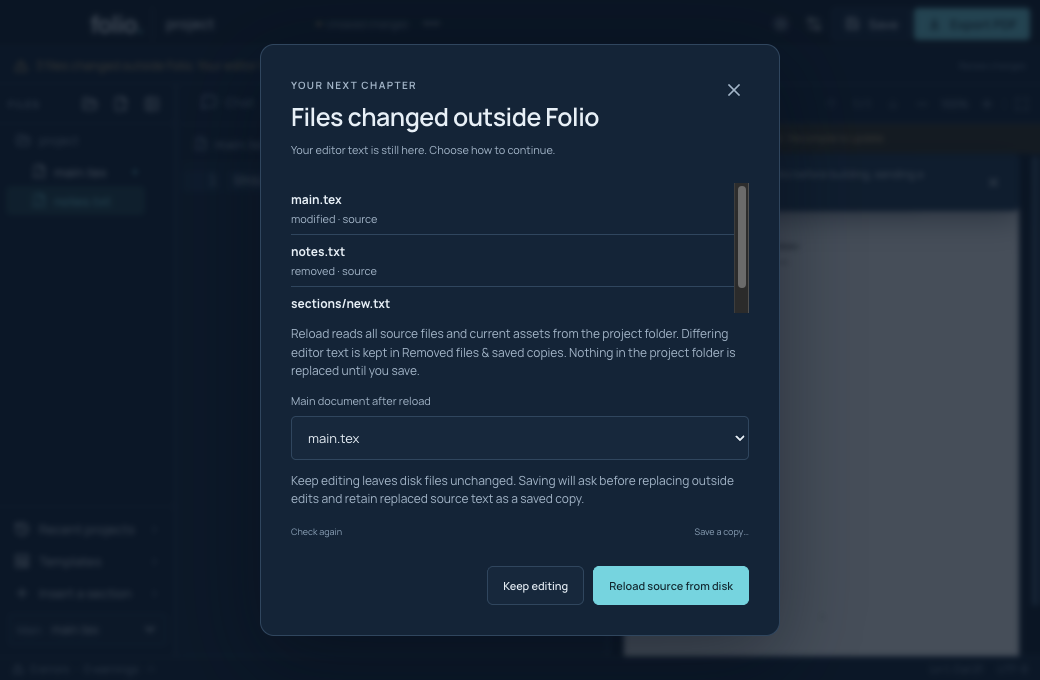
Choose how to handle files edited by another app.

  1. Open Review changes and read the list.
  2. Keep editing, save a copy, or reload disk files.
  3. Find preserved editor text in Removed files & saved copies.
Read the tutorial →Full screenshot ↗
Read and export the PDF in the real Folio app

Real app · synthetic project

Read and export the PDF

Navigate, zoom, select text and export a current, clean PDF.

  1. Use the arrows, page number or scrolling.
  2. Use selection mode for text and links, or a mark tool for notes.
  3. Check Up to date, then export without feedback marks.
Read the tutorial →Full screenshot ↗
Themes and workspace layout in the real Folio app

Real app · synthetic project

Themes and workspace layout

Adjust the workspace to fit the way you write.

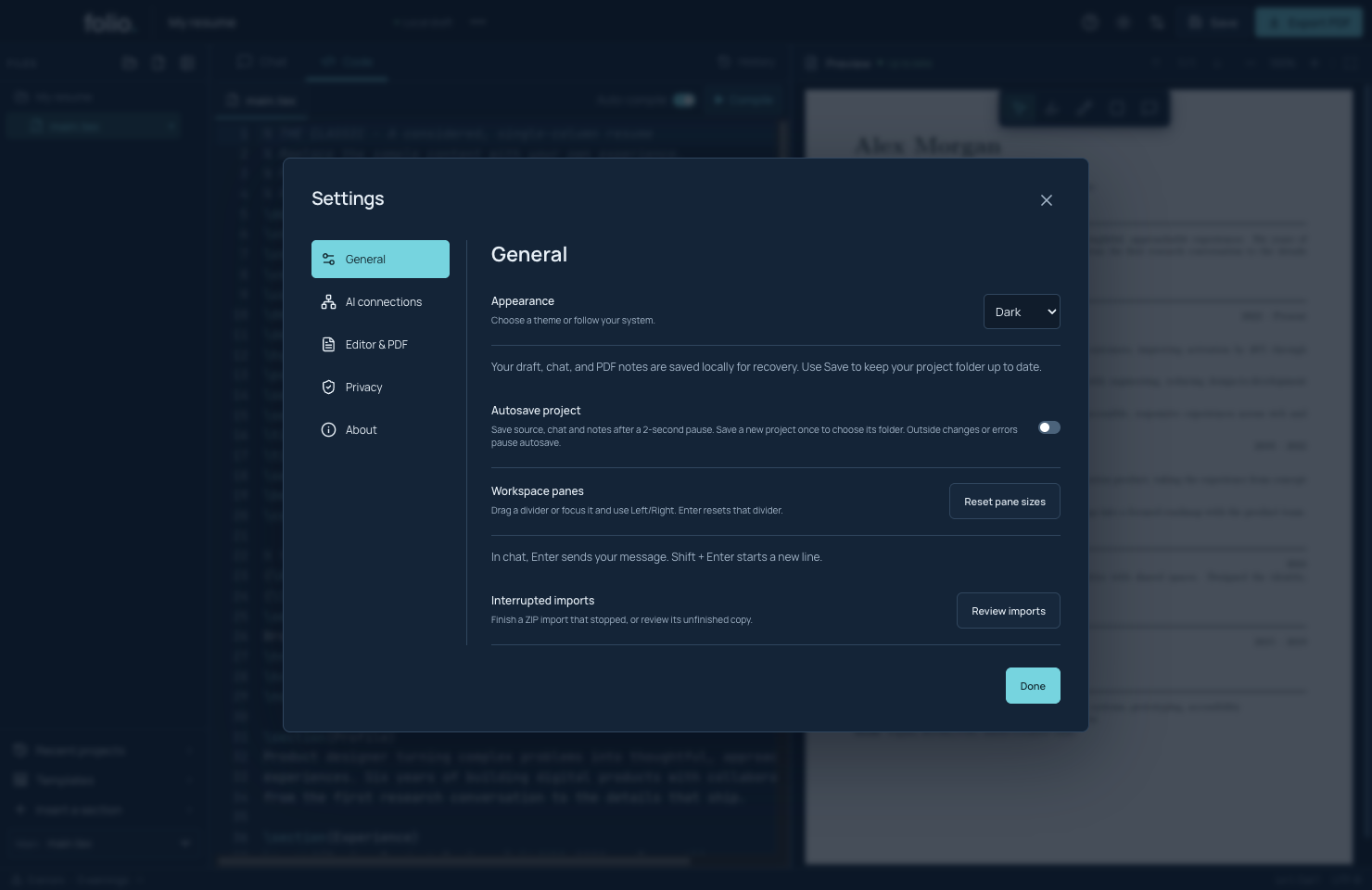
  1. Choose Dark, Light or System appearance.
  2. Drag a divider or use Tab and arrow keys to resize.
  3. Reset pane sizes in General when needed.
Read the tutorial →Full screenshot ↗
Editor and PDF preferences in the real Folio app

Real app · synthetic project

Editor and PDF preferences

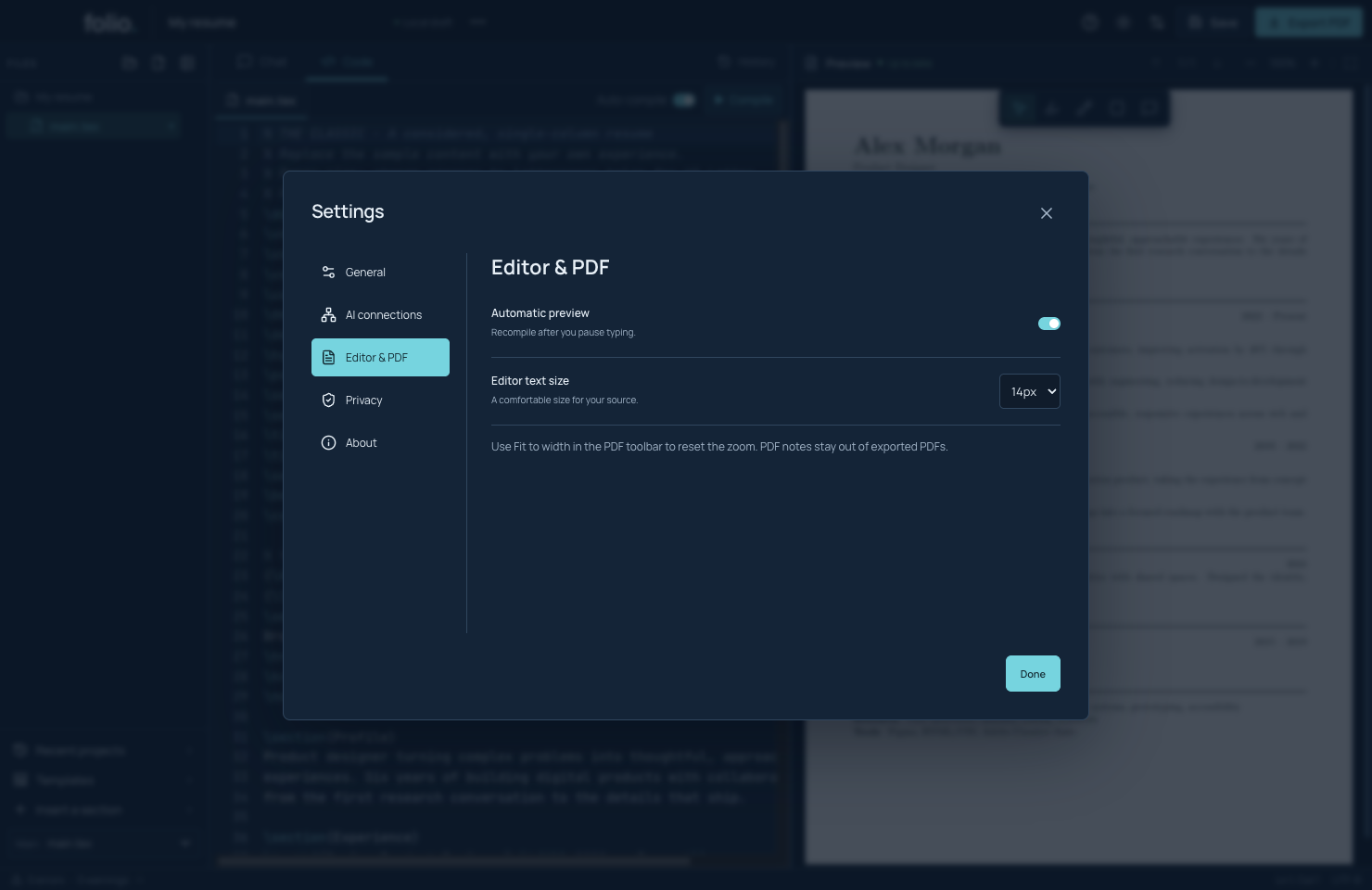
Text size and automatic preview are separate from the resume typography.

  1. Open Settings → Editor & PDF.
  2. Choose a comfortable editor size.
  3. Turn automatic preview on or compile manually.
Read the tutorial →Full screenshot ↗
Offline compiler repair in the real Folio app

Real app · isolated damaged-runtime fixture

Offline compiler repair

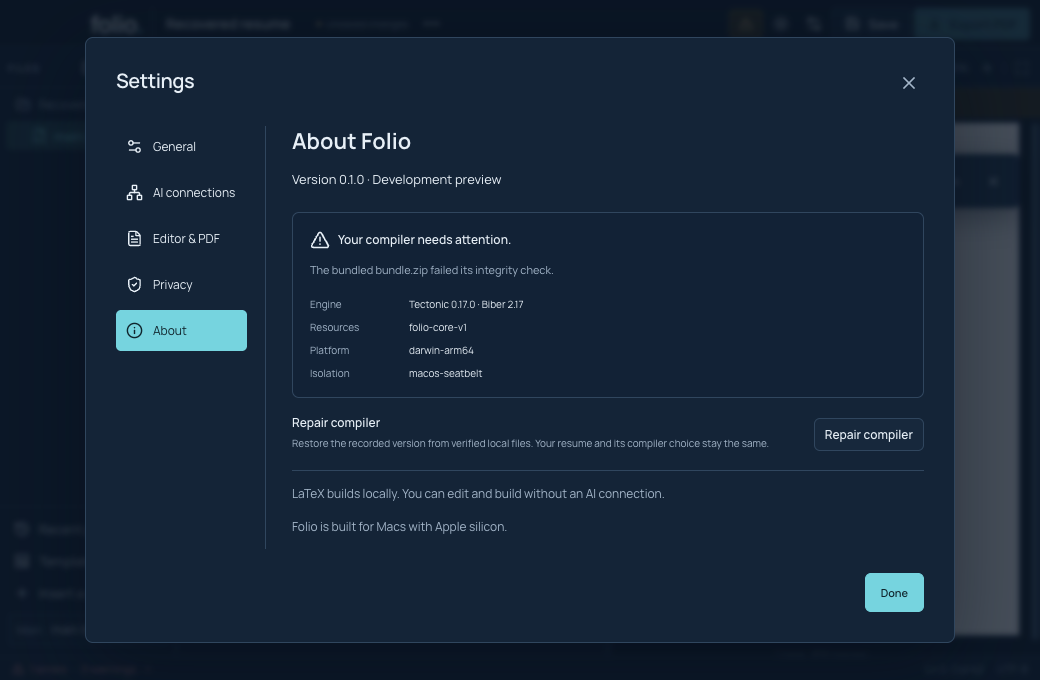
A deliberate test corruption demonstrates the repair flow.

  1. Read the message in Settings → About.
  2. Repair from a matching local compiler copy.
  3. Wait for ready, rebuild, and inspect the PDF.
Read the tutorial →Full screenshot ↗
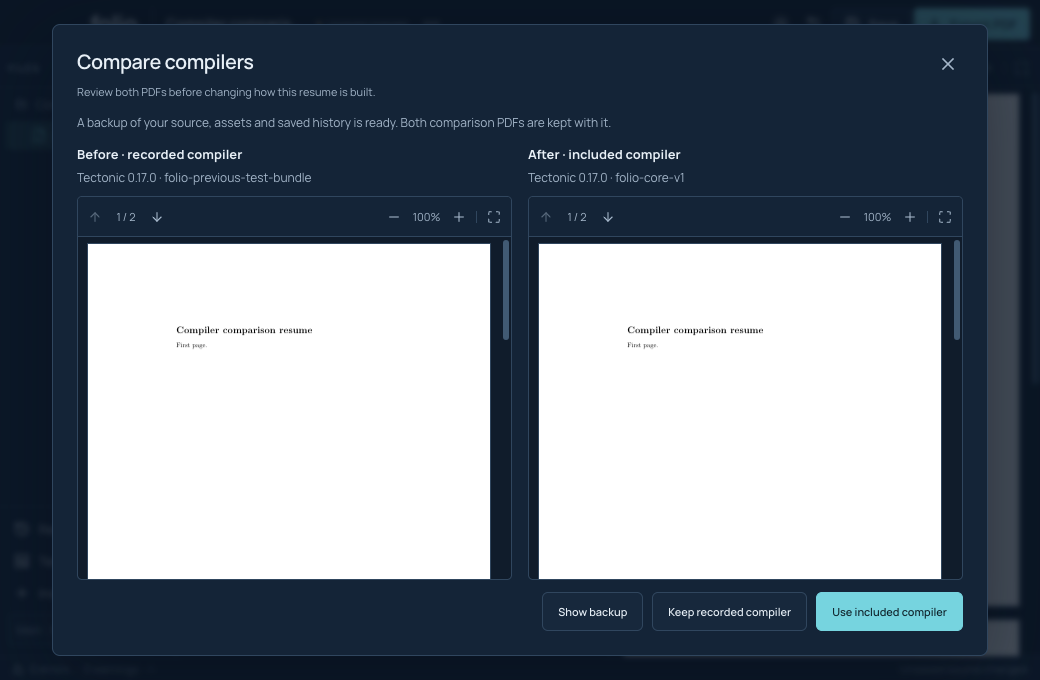
Compare compiler versions in the real Folio app

Real app · synthetic compiler identity

Compare compiler versions

The test uses a synthetic previous compiler identity and real PDFs.

  1. Start the comparison from Settings.
  2. Inspect both PDFs and the retained backup.
  3. Keep the recorded compiler or explicitly apply the included one.
Read the tutorial →Full screenshot ↗
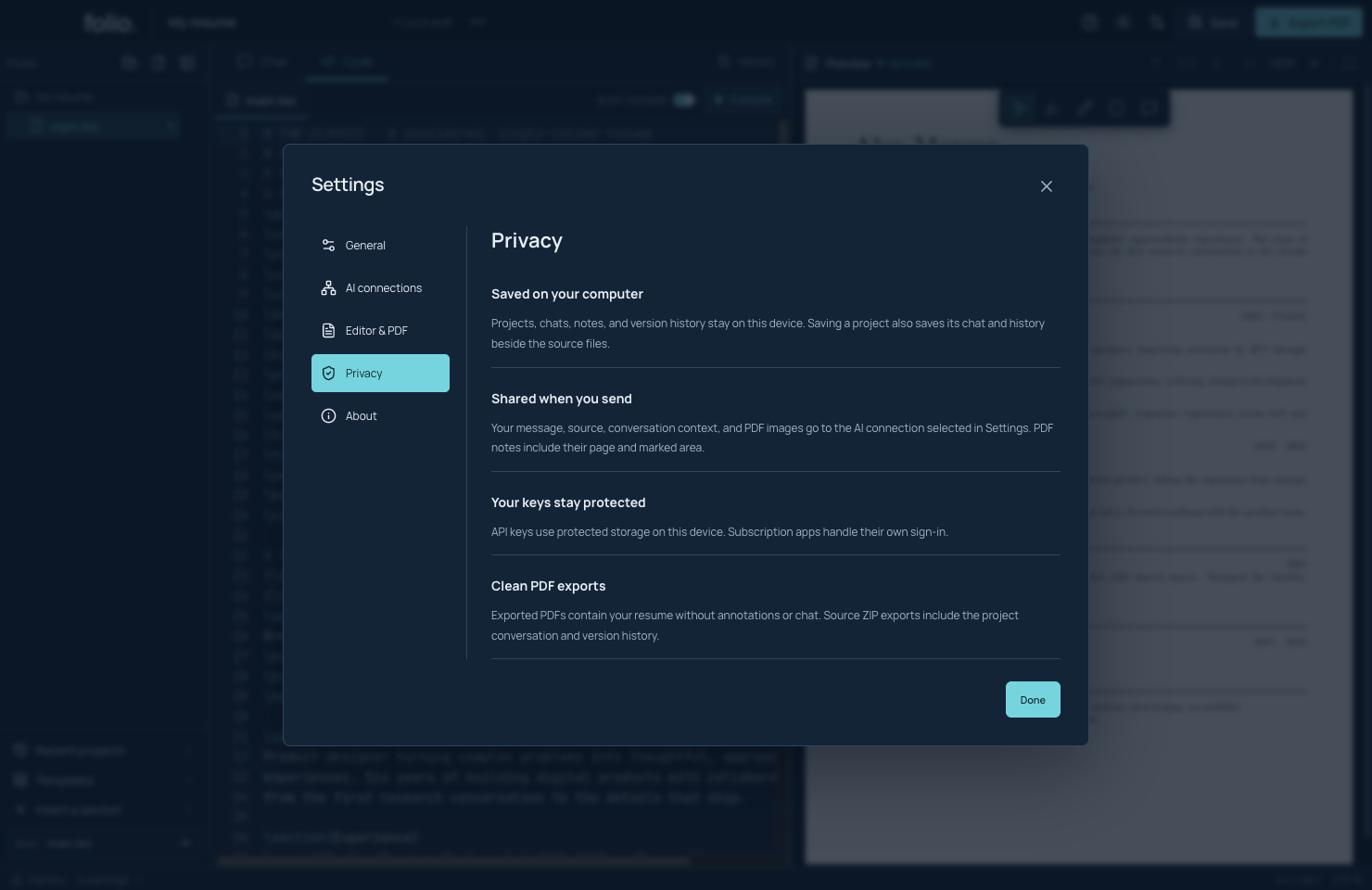
Privacy and support in the real Folio app

Real app · synthetic project

Privacy and support

Understand what stays local and what leaves when you send a chat.

  1. Read Settings → Privacy.
  2. Check source ZIP contents before sharing.
  3. Use Help for shortcuts and About for the app version.
Read the tutorial →Full screenshot ↗
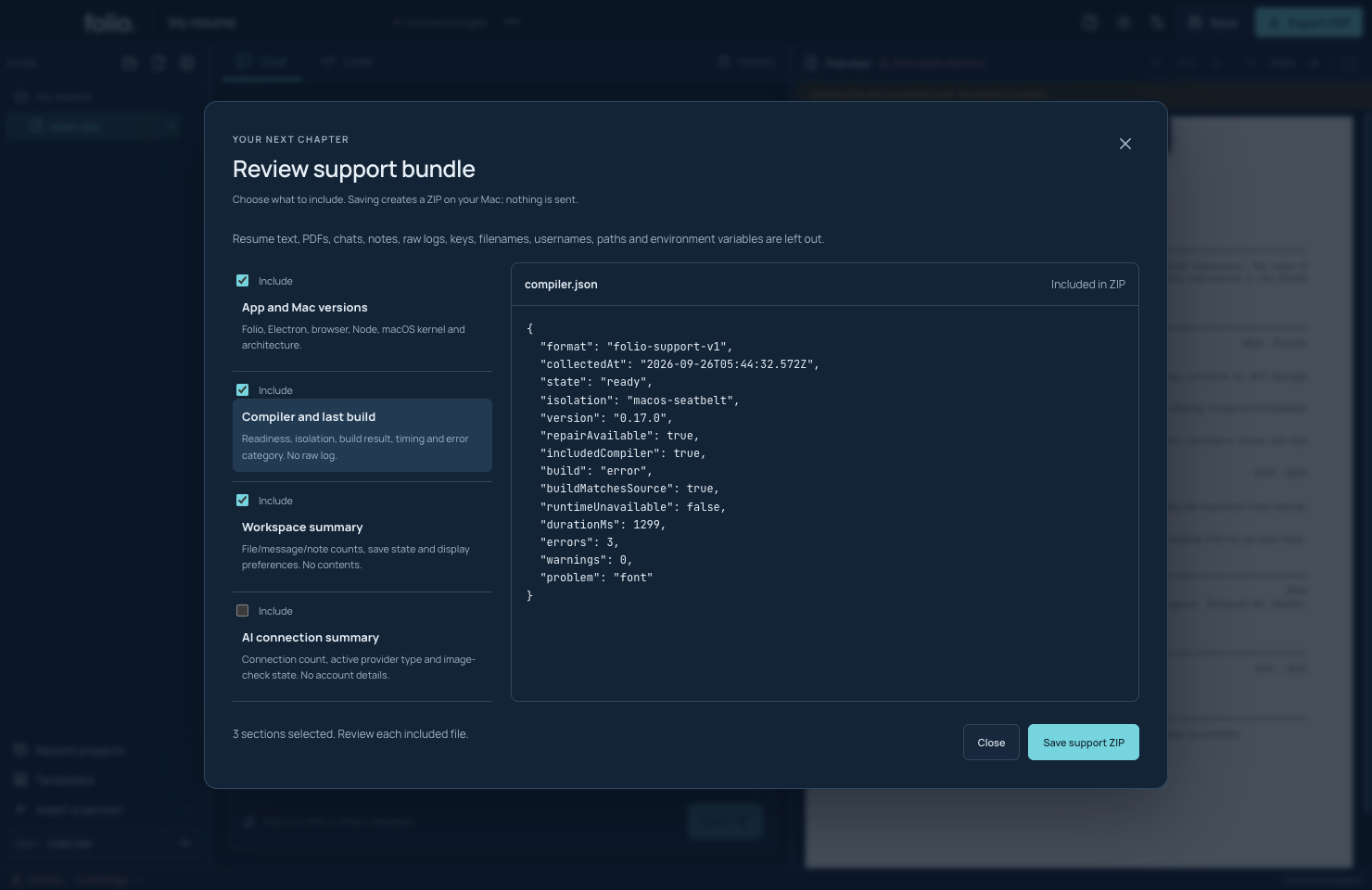
Folio support bundle preview with compiler status and no raw log or source text

Real app · synthetic private markers and compiler failure

Review a support bundle

Share a small diagnostic summary after reviewing exactly what it contains.

  1. Open Settings → Privacy → Review support bundle.
  2. Read each file and untick any section to leave it out.
  3. Save the support ZIP locally; share it yourself when ready.
Read the tutorial →Full screenshot ↗
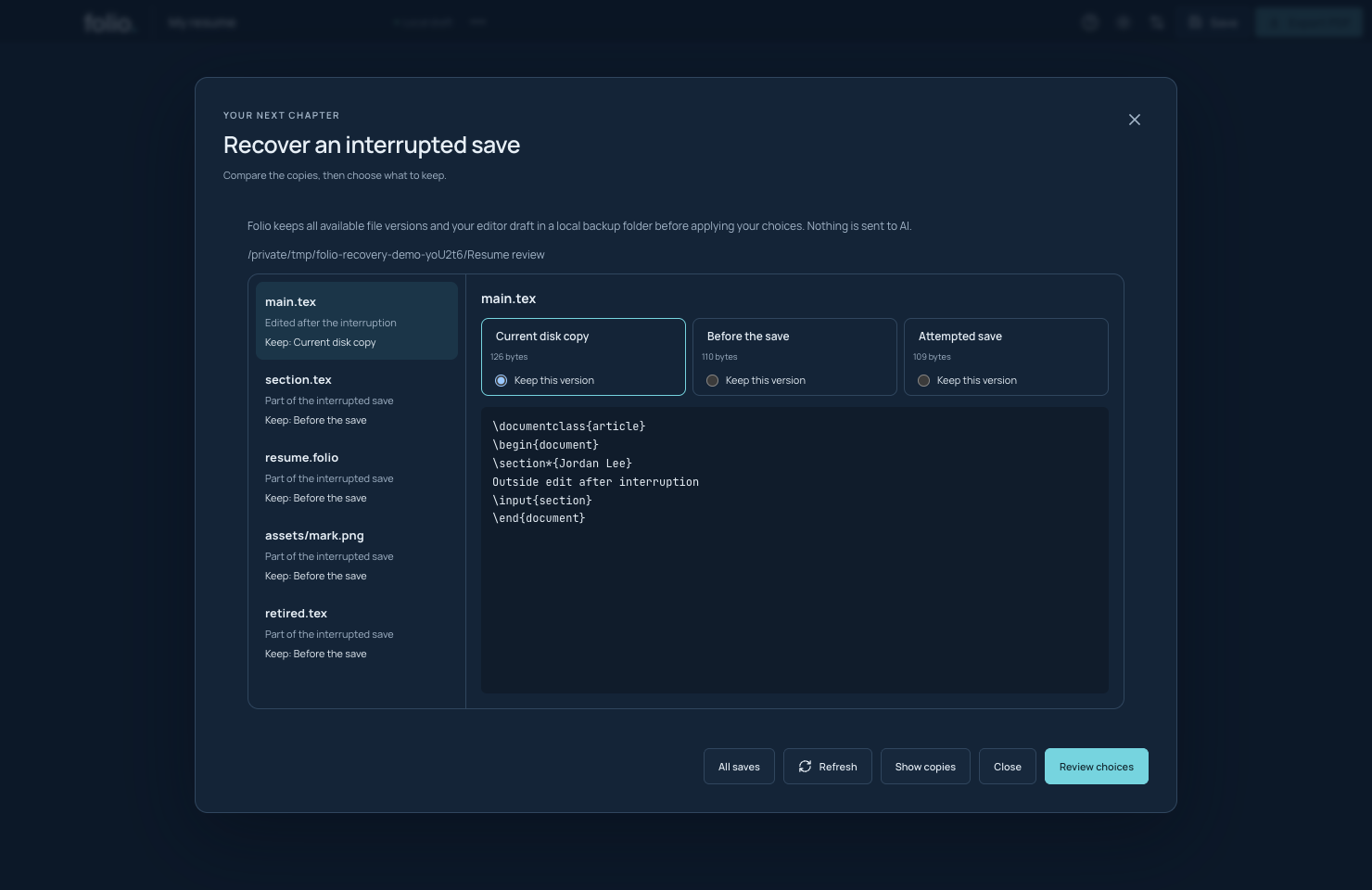
Folio interrupted-save review showing current, before-save and attempted copies of a synthetic resume

Real app · controlled interruption and outside-edit fixture

Recover an interrupted save

Compare file versions and keep your outside edits and unfinished drafts.

  1. Open Interrupted saves from the project menu or failed startup.
  2. Choose the current, before-save or attempted version of each file.
  3. Review your choices, apply with backups, then check the rebuilt PDF.
Read the tutorial →Full screenshot ↗
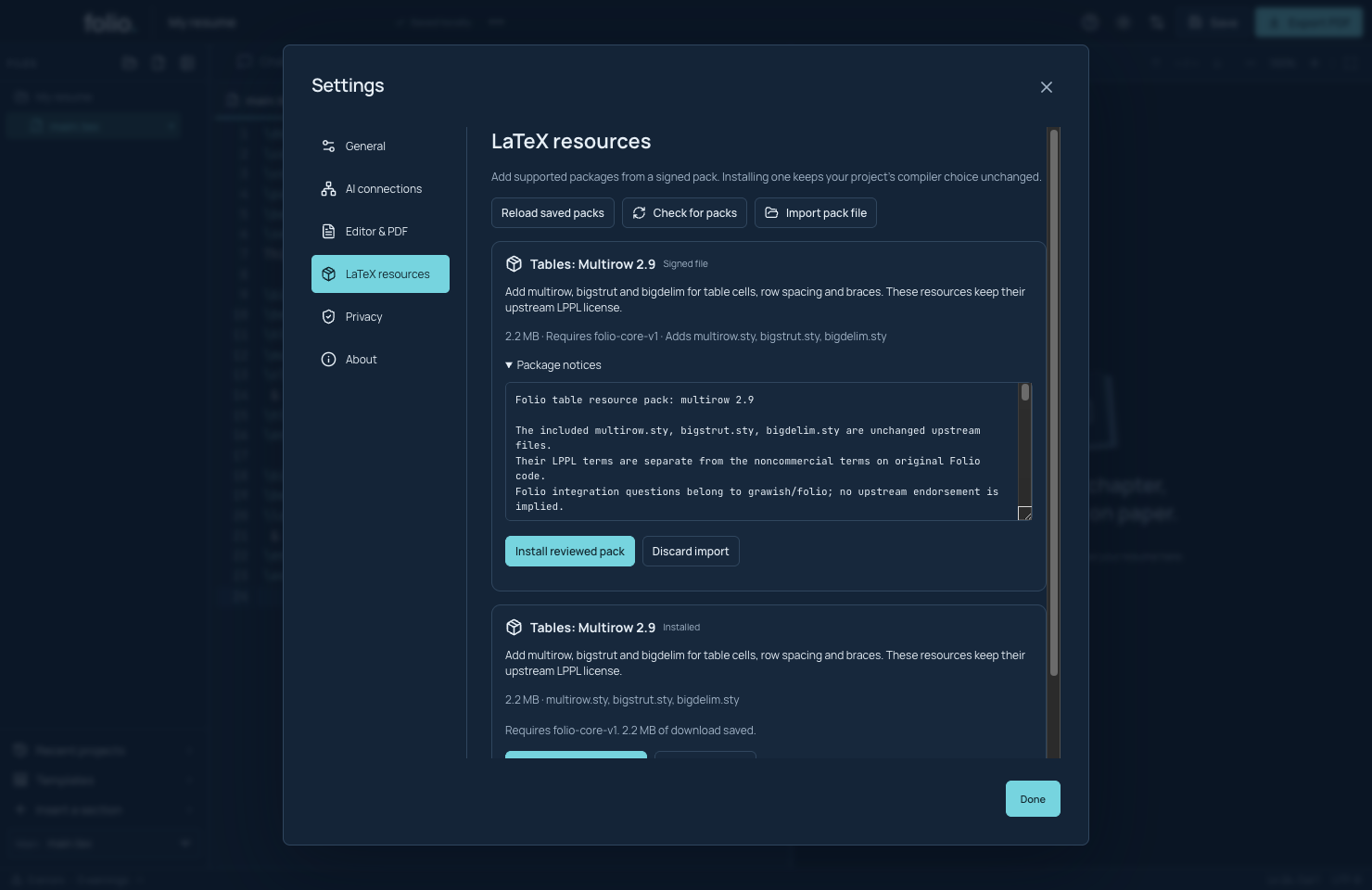
The published Multirow table pack and its notices in the dark Folio Settings window

Real source app · public table pack

Review a signed resource pack

Review the published table pack and its upstream notices before installing the selected file.

  1. Open Settings → LaTeX resources.
  2. Choose Import pack file and read its name, requirements and notices.
  3. Install the reviewed bytes or discard the import.
Read the tutorial →Full screenshot ↗
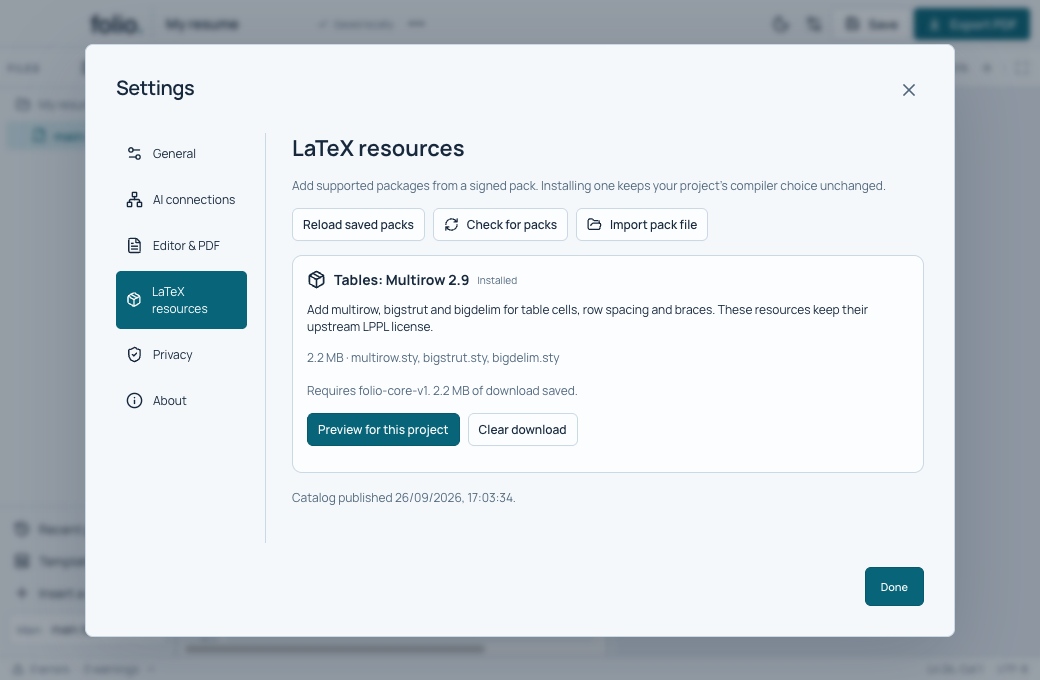
The published table pack installed in the compact light Folio Settings window

Real source app/compiler · public HTTPS catalog

Install a published resource pack

The normal app downloads from the public HTTPS catalog and checks the compiler. Installing keeps the project’s compiler choice unchanged.

  1. Open LaTeX resources in Settings and check for packs.
  2. Download the table pack and wait for copying and offline checks.
  3. Preview it for the project before choosing to use it.
Read the tutorial →Full screenshot ↗
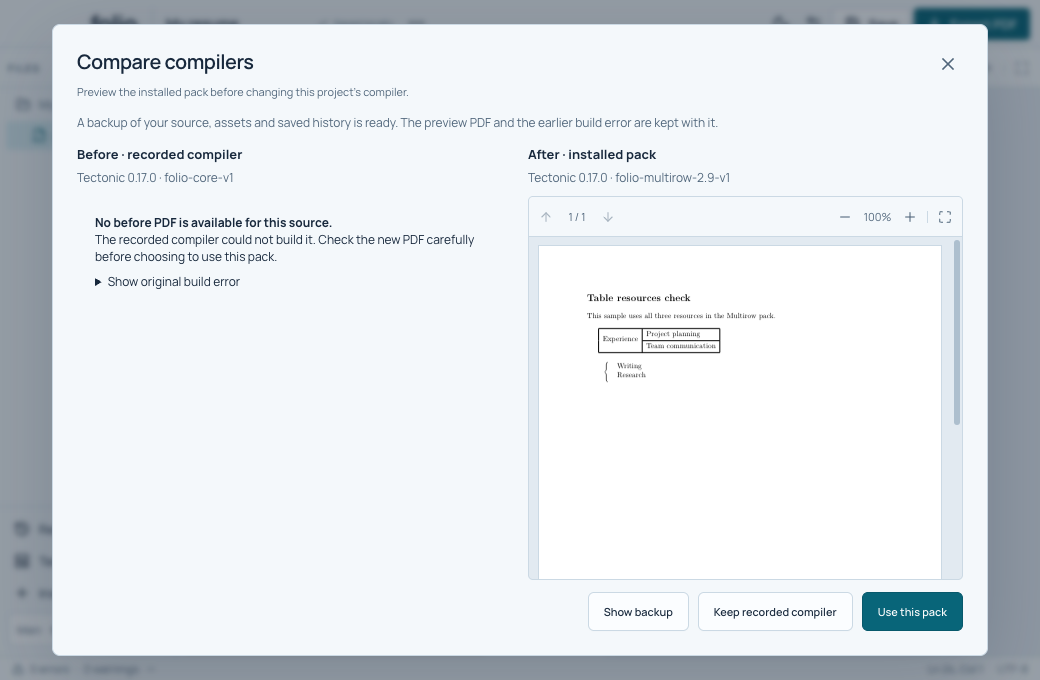
A real PDF beside an honest unavailable-before message in Folio’s compiler comparison

Real public pack/compiler · synthetic table document

Preview a pack before using it

A sample table needs the added resources. The published pack builds its PDF, with a backup and explicit Apply.

  1. Choose Preview for this project, then Build comparison.
  2. Read the new PDF and the explanation for an unavailable before PDF.
  3. Choose Use this pack only when ready, then save.
Read the tutorial →Full screenshot ↗
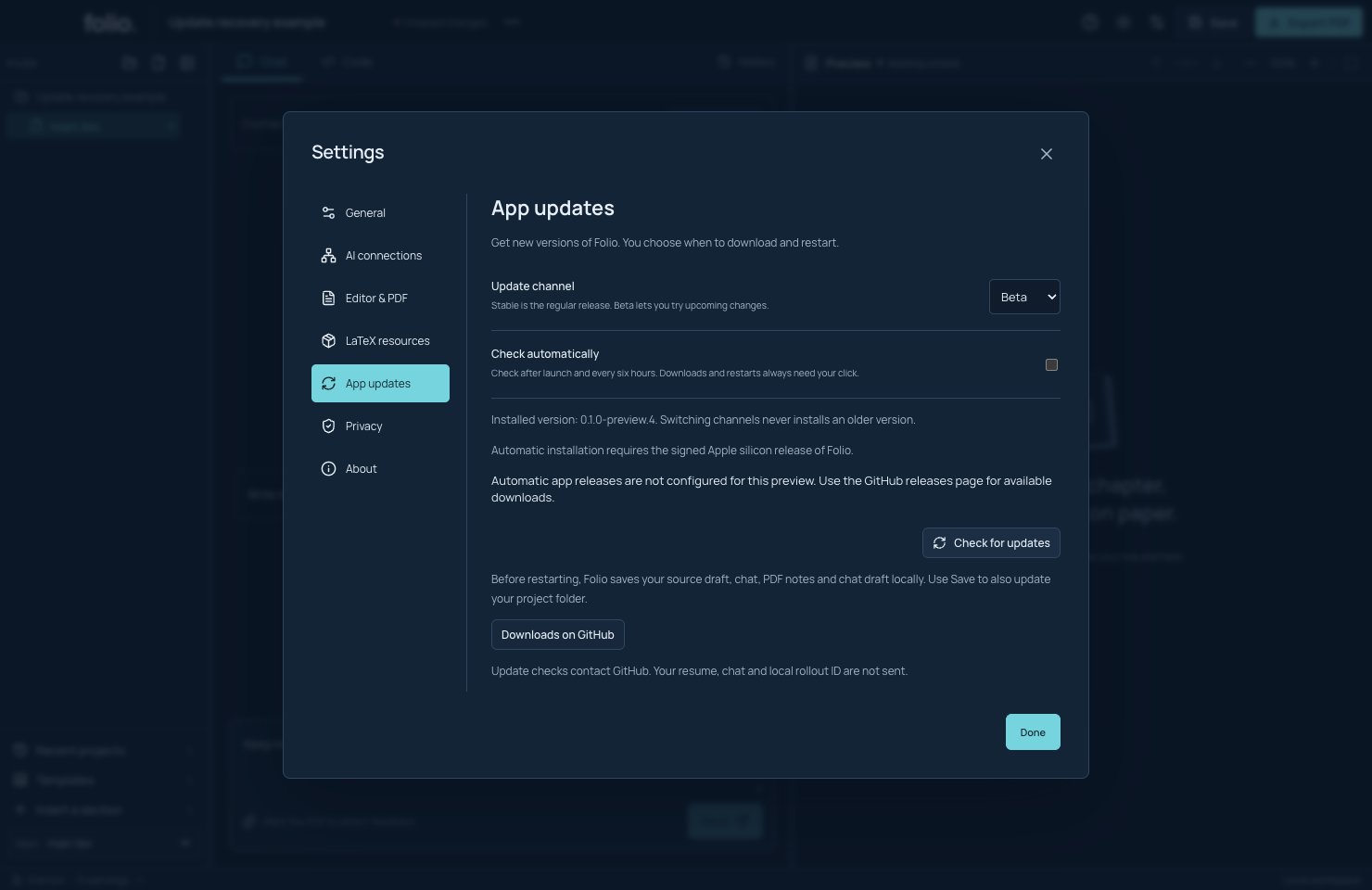
Folio app update Settings with Beta selected and an honest preview availability message

Real source app · unconfigured production publisher

Choose how Folio checks for updates

Choose Stable or Beta and opt into update checks. This source preview clearly reports that production app updates are not configured yet.

  1. Open Settings → App updates.
  2. Choose a channel and optional automatic checks.
  3. Check release status or open Downloads on GitHub.
Read the tutorial →Full screenshot ↗
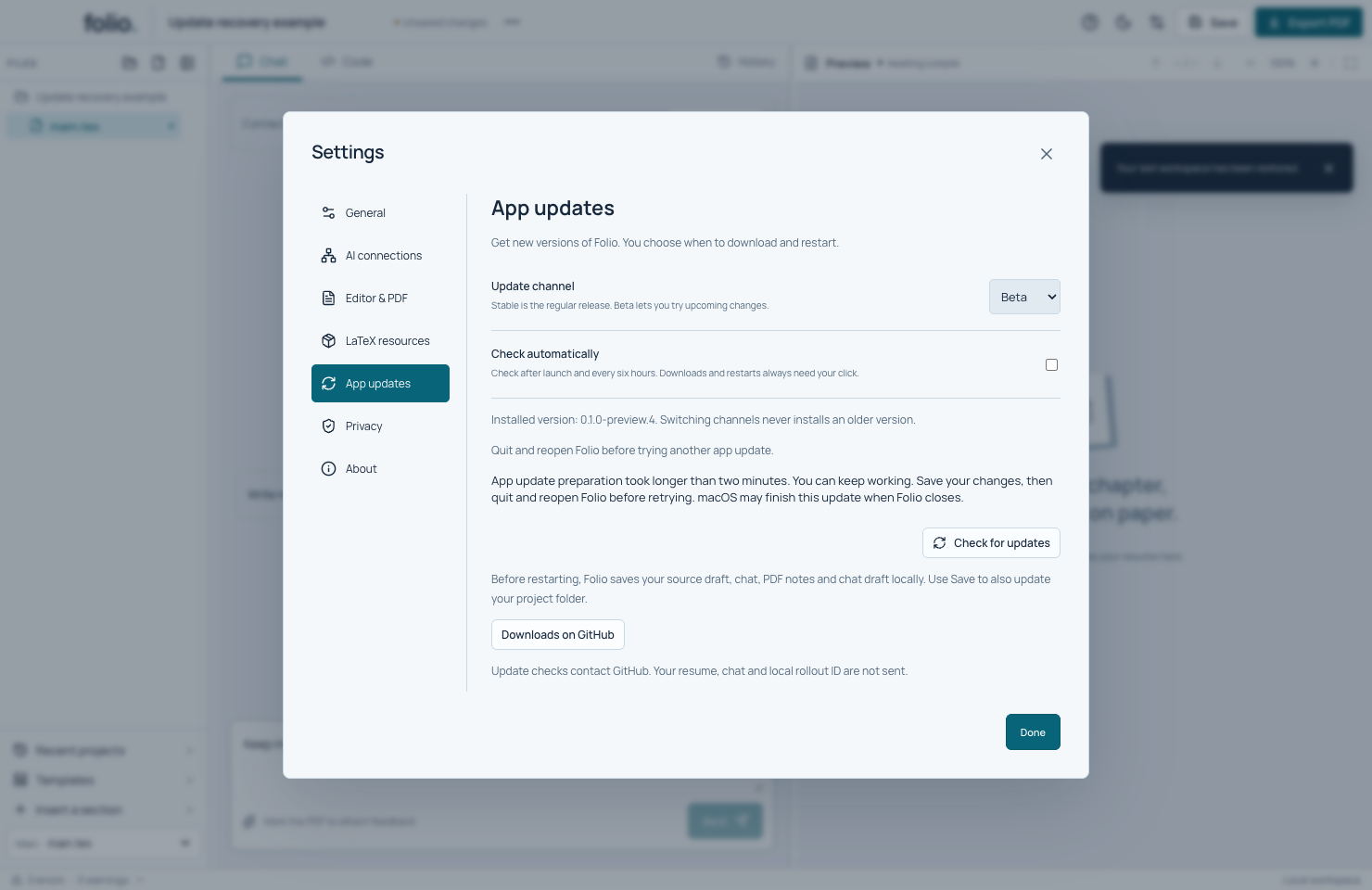
Folio update Settings after a simulated preparation timeout, with recovery guidance and an enabled Done button

Real source Settings · simulated timeout

Keep working after an update timeout

The real Settings screen explains a simulated update timeout and lets you return to the document. This does not demonstrate a signed app update.

  1. Read the recovery message after update preparation fails.
  2. Return to the document and save your latest changes.
  3. Quit and reopen Folio before trying another update.
Read the tutorial →Full screenshot ↗
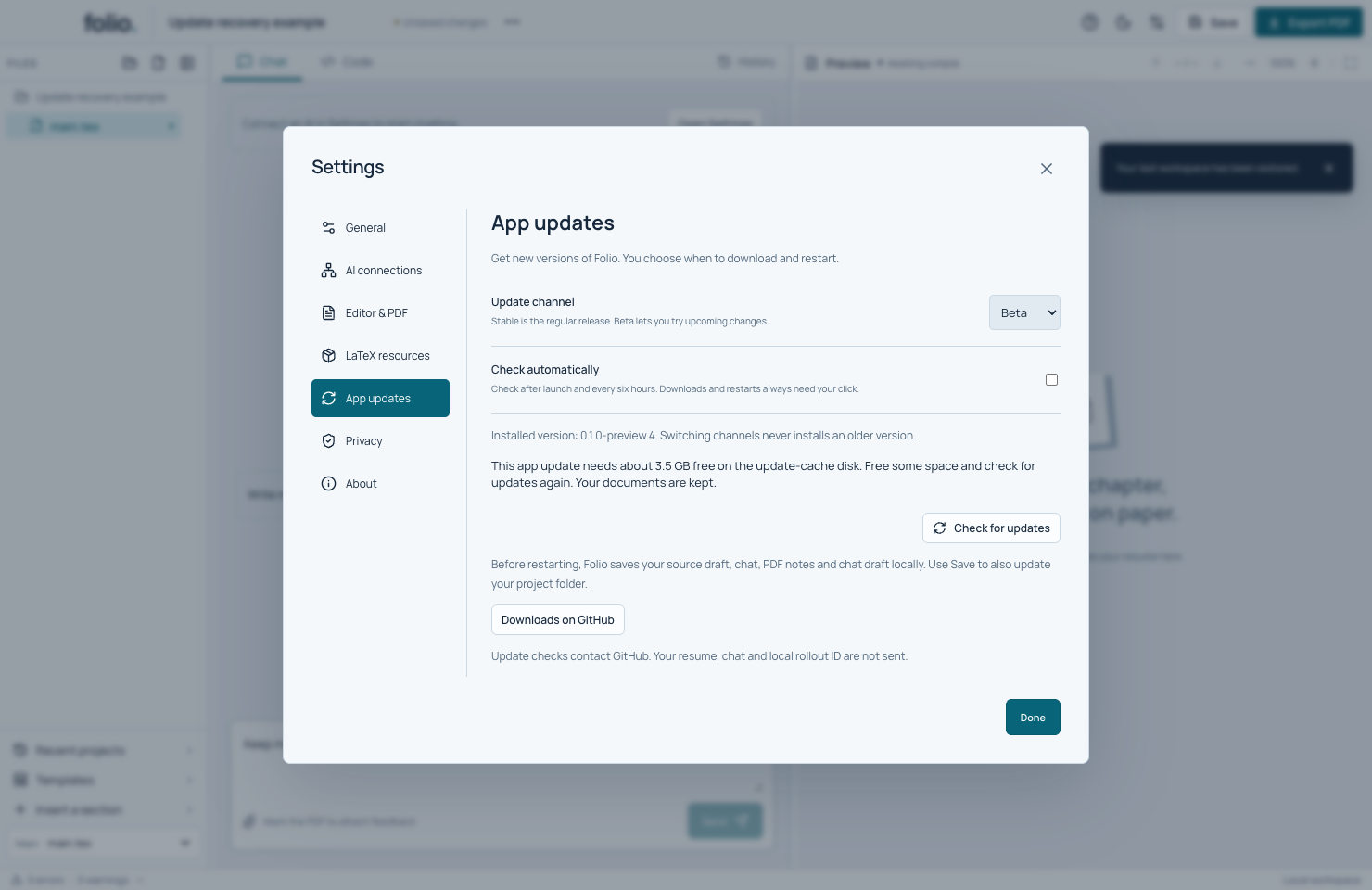
Folio Settings showing free-space guidance and enabled Check for updates and Done buttons

Real source Settings · simulated low space

Make room for an app update

A simulated low-space message in the real Settings screen explains how to retry. Your documents stay in place.

  1. Read the amount of free space requested.
  2. Free some space on that disk.
  3. Check for updates again, or return to your document.
Read the tutorial →Full screenshot ↗
Folio with a visible keyboard focus ring on the selected Code tab and a compiled synthetic resume beside it

Real app · automated keyboard input

Move around with the keyboard

Switch Chat and Code with arrow keys, open Settings, and return to work without losing your place.

  1. Use Tab to reach the selected Chat or Code tab.
  2. Use Left/Right to switch views; Tab moves onward.
  3. Open Settings with Enter, then close it with Escape to return focus.
Read the tutorial →Full screenshot ↗
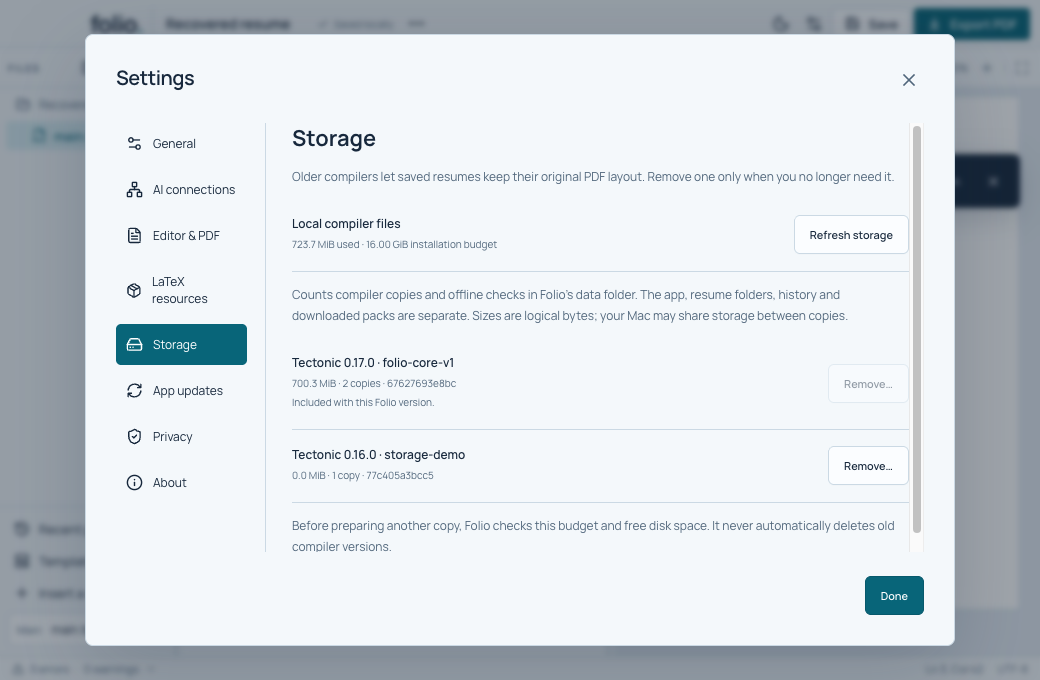
Folio storage Settings showing the protected current compiler and an explicitly removable synthetic old compiler

Real source Settings · inert old-compiler fixture

Review old compiler files

See local compiler sizes and review an old version before removal. Other saved resumes may still need that exact version.

  1. Open Settings → Storage after finishing a PDF build.
  2. Check the size and protected compiler rows.
  3. Review Remove… and the Mac confirmation, or choose Cancel.
Read the tutorial →Full screenshot ↗
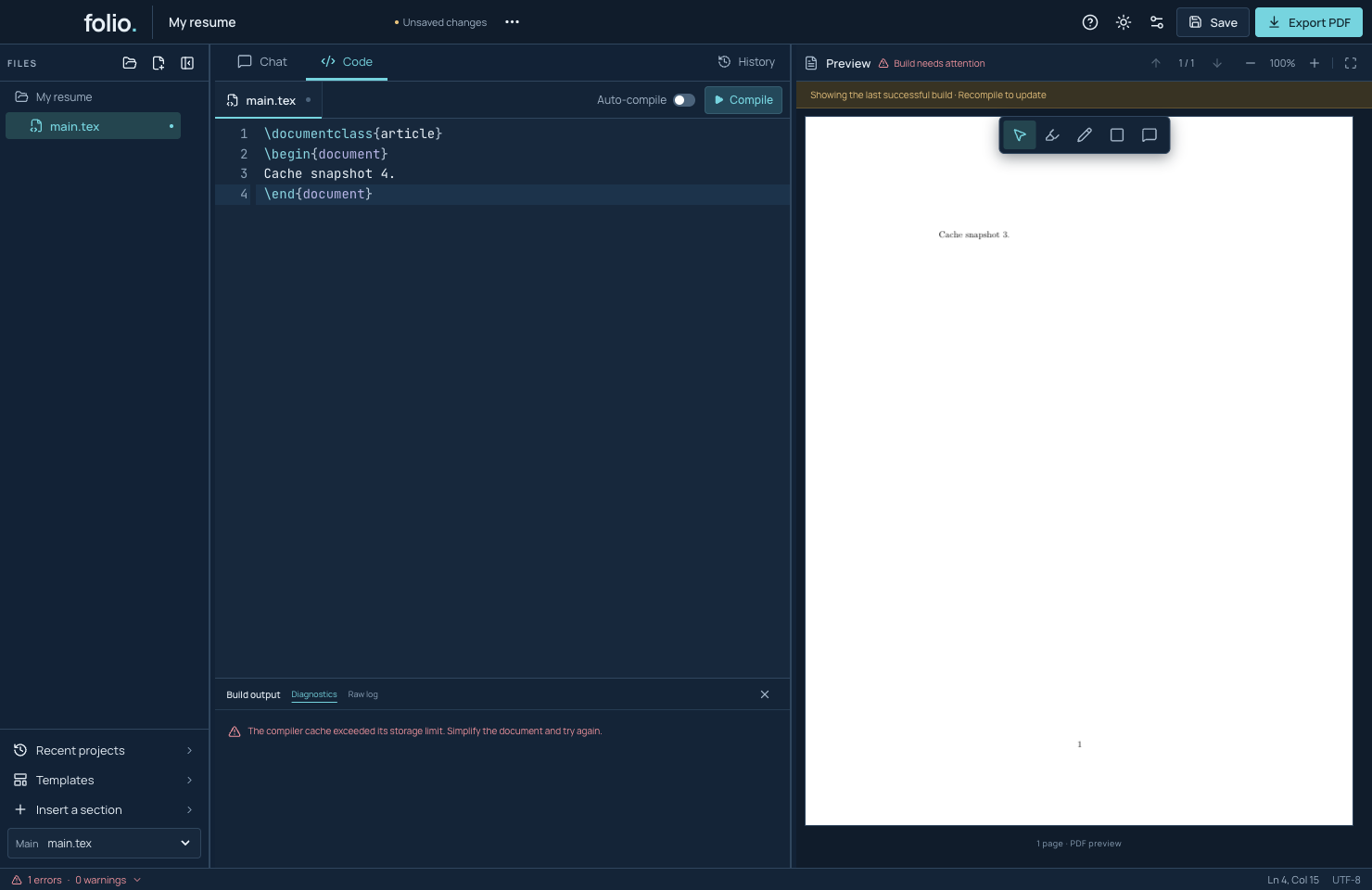
Folio showing a compiler-cache limit message and the prior successful PDF beside the current source

Real development app · simulated oversized-cache reading

Recover after a compiler cache limit

Read a cache-limit message while the last successful PDF stays visible, then rebuild after fixing the cause.

  1. Keep your source open and read the build message.
  2. Simplify the document if it keeps creating large helper files.
  3. Click Compile and check that the current PDF appears.
Read the tutorial →Full screenshot ↗
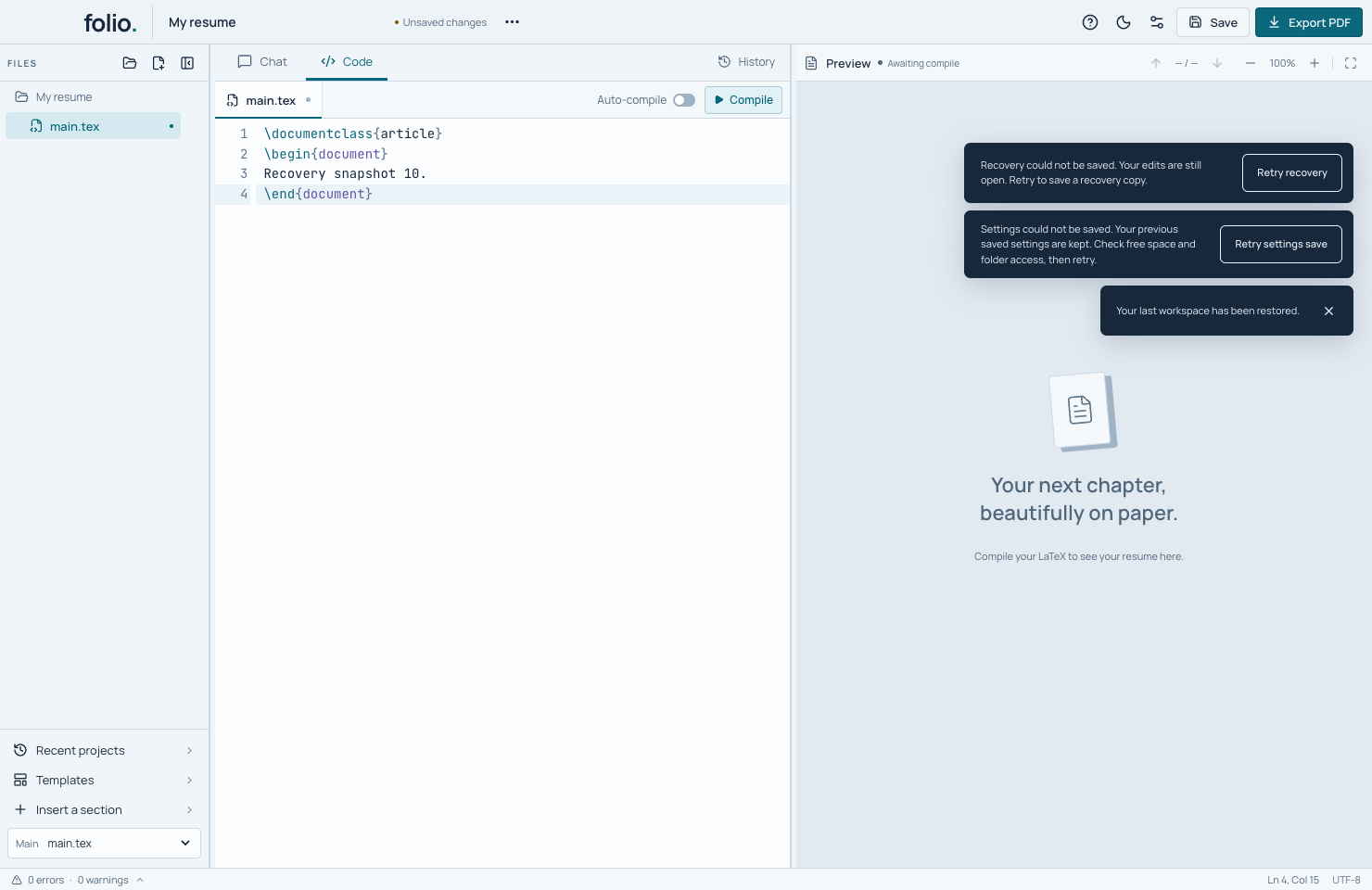
Folio showing separate Retry recovery and Retry settings save buttons above a synthetic source document

Real development app · simulated write failures

Retry a recovery save

Keep your edits open while fixing a local recovery-save problem, then save the newest draft with one retry.

  1. Keep Folio open and check free space and folder access.
  2. Click Retry recovery to save your latest draft.
  3. Wait for the warning to disappear; retry Settings separately if needed.
Read the tutorial →Full screenshot ↗
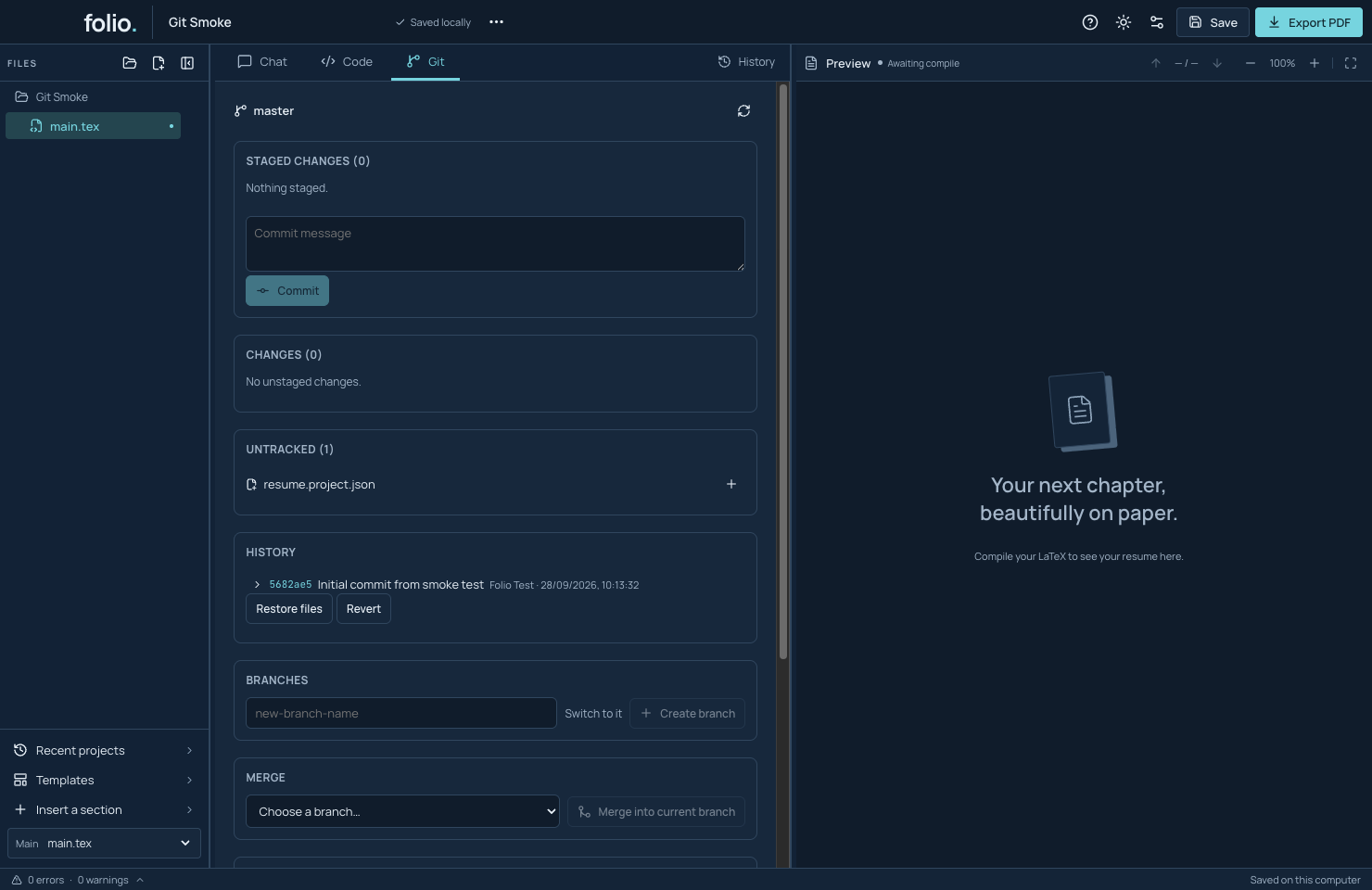
Folio Git panel showing a real local synthetic commit and one untracked project file.

Development source · real local Git · synthetic identity · PDF not built

Keep file versions with Git

Development source can make local Git checkpoints of your saved files. The preview-4 download predates this feature.

  1. Save the project and open Git.
  2. Stage the files you want to keep in the checkpoint.
  3. Enter a commit message and inspect it under History.
Read the tutorial →Full screenshot ↗